

A customer places an order. Payment goes through. The order appears in your dashboard. And no confirmation email arrives — not for the customer, and sometimes not for you either.
Support tickets follow within hours. Customers assume the order failed and place it again, or request a refund. For a store, this is not a minor annoyance: order confirmations are the receipt customers rely on, and missing them costs real revenue.
The frustrating part is that WooCommerce almost never tells you anything is wrong. This guide works through the diagnosis in the order that finds the cause fastest, then covers the fixes for each.
Quick Answer: Why Are WooCommerce Emails Not Sending?
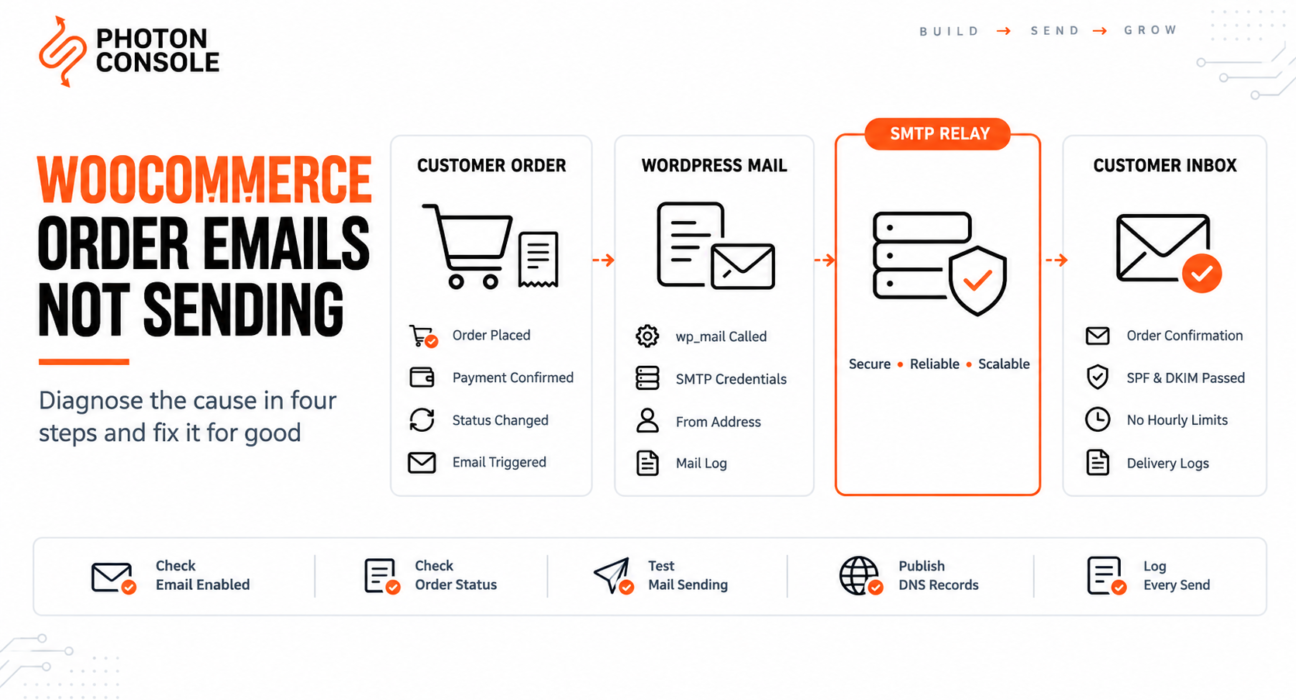
There are four independent reasons, and they fail in sequence. An order email only arrives if all four pass:

- The email type is enabled in WooCommerce, then Settings, then Emails
- The order status changed to one that triggers that email
- WordPress can send mail at all —
wp_mail()is working - The receiving server accepted it — your domain passes authentication
Most store owners start at step three and never check steps one and two, which is where the problem usually is. Work through them in order. If step three turns out to be the failure, routing mail through an authenticated relay such as PhotonConsole resolves it.
Which Emails WooCommerce Sends, and What Triggers Them
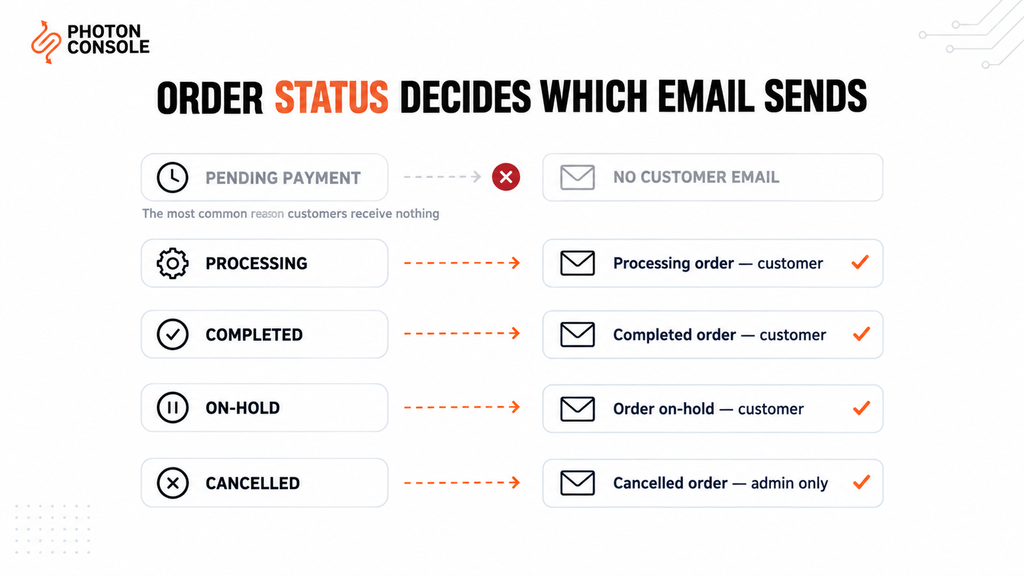
WooCommerce does not send one “order email”. It sends a set of separate notifications, each tied to a specific order status. If the status never reaches the trigger, the email is never queued.
| Sent to | Triggered when the order becomes | |
|---|---|---|
| New order | Admin | Processing, Completed or On-hold |
| Processing order | Customer | Processing |
| Completed order | Customer | Completed |
| Order on-hold | Customer | On-hold |
| Cancelled order | Admin | Cancelled |
| Failed order | Admin | Failed |
| Refunded order | Customer | Refunded |
| Invoice / order details | Customer | Sent manually from the order screen |
| New account | Customer | Account created at checkout |
Notice what is absent: there is no customer email for Pending payment. An order stuck at that status is the single most common reason a customer receives nothing, and the order still appears in your dashboard, which is why it looks like an email fault rather than a payment one.
Match the Symptom to the Cause
The pattern of what fails usually points straight at the cause.
| Symptom | Most likely cause | Check first |
|---|---|---|
| No emails at all, site-wide | WordPress cannot send mail | SMTP plugin test email |
| Admin emails arrive, customer ones do not | Order status never triggered it | Order status on a test order |
| Manual resend works, automatic does not | Trigger condition, not delivery | Email enabled setting and status |
| Emails arrive hours late | WP-Cron not running | Replace with a server cron job |
| Works normally, fails during sales | Hosting hourly send limit | Host mail limit in the control panel |
| Emails send but land in spam | Missing SPF or DKIM | Deliverability checker on your domain |
| Stopped after an update | Template override or plugin conflict | WooCommerce, Status for overrides |
Step-by-Step Diagnosis
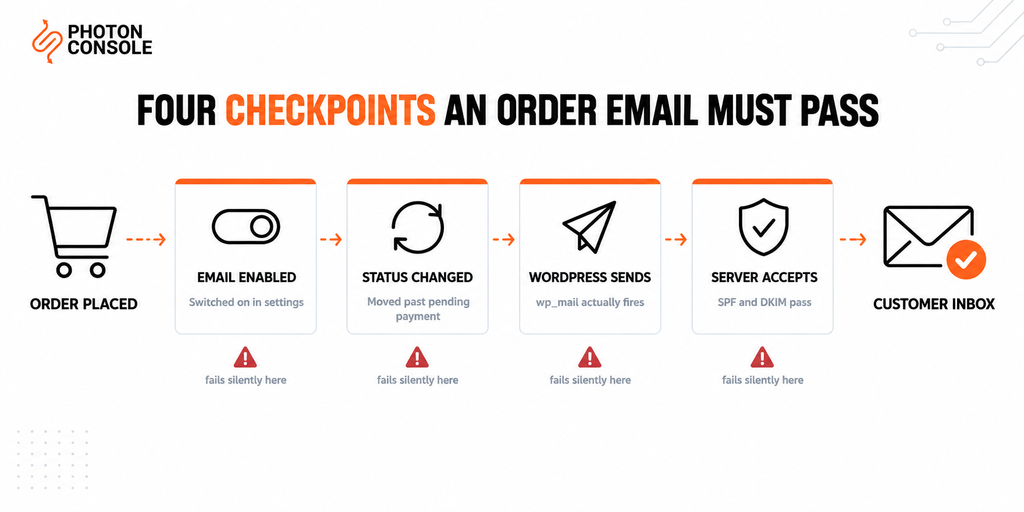
Work through these in order. Each step rules out a whole category of cause, so skipping ahead usually wastes time.
Step 1: Check Whether the Email Type Is Enabled
Go to WooCommerce, then Settings, then Emails. Each notification has its own enabled toggle, its own recipient, and its own subject line. Confirm the specific email you expect is switched on.
Pay attention to the recipient field on admin emails. It defaults to the site admin address, which on many installs is an address nobody monitors, or one that no longer exists.
Step 2: Check the Order Status
Open the order and look at its status. If it reads Pending payment, no customer email was triggered and nothing is broken in your mail configuration.
Orders sit at pending payment when the payment gateway never confirmed the transaction. Common causes are a failed gateway callback, a webhook that could not reach your site, or a customer abandoning the payment page after the order was created.
Common Mistake
Debugging SMTP settings for hours when the real problem is that orders never leave Pending payment. Before touching any mail configuration, place a test order and watch whether the status moves to Processing. If it does not, the issue is the payment gateway callback, not email. Fixing SMTP will change nothing.
Step 3: Test Whether WordPress Can Send Any Mail
Install an SMTP plugin and send its built-in test email, or trigger a password reset for a test account. If neither arrives, the problem is WordPress-wide rather than WooCommerce-specific.
By default WordPress uses the PHP wp_mail() function, which sends unauthenticated mail directly from your web server. Most hosts block it and most mailbox providers filter it. Our guide to SMTP not working covers the full set of failure modes.
Step 4: Resend the Email Manually
Open the order, find the Order actions box in the sidebar, choose an email from the dropdown, and click the arrow to send.
This is a useful diagnostic. If the manual resend arrives but the automatic one never did, the mail connection is fine and the problem is the trigger — meaning step two is where to look. If the manual resend also fails, the problem is delivery.
Step 5: Check the WooCommerce Logs
Go to WooCommerce, then Status, then Logs. Fatal errors during checkout can stop execution before the email hook runs, which produces an order that saved correctly with no notification sent.
Also check WooCommerce, then Status, and look at the system report for a flagged template override, covered in step seven.
Step 6: Test for a Plugin Conflict
Other plugins hook into the same email actions. A booking plugin, an invoice generator or a marketing tool can unhook WooCommerce’s own notifications, replace them, or throw an error that halts them.
Deactivate plugins in batches on a staging site, testing an order after each batch. Do not do this on a live store during trading hours.
Step 7: Check for Outdated Template Overrides
If your theme contains a woocommerce/emails/ folder, those files override WooCommerce’s own templates. When WooCommerce updates its template structure, an outdated override can break rendering or stop the email entirely.
WooCommerce, then Status shows any overrides that are out of date. The fix is to update the override to match the new template version, or remove it if the customisation is no longer needed.
Quick Fix
No Order Emails At All
- Confirm the email type is enabled under WooCommerce, Settings, Emails
- Place a test order and confirm the status moves past Pending payment
- Send a manual resend from the Order actions box to isolate trigger from delivery
- Send an SMTP plugin test email to check WordPress can send anything
- Check WooCommerce, Status, Logs for fatal errors during checkout
Delayed Emails and WP-Cron
Some WooCommerce notifications are dispatched through the scheduler rather than immediately. WordPress runs its scheduler, WP-Cron, only when someone visits the site.
On a low-traffic store that means scheduled tasks can sit unrun for hours. Orders placed overnight produce emails that arrive the next morning, or not at all.
The fix is to disable WP-Cron and replace it with a real server cron job:
// wp-config.php
define( 'DISABLE_WP_CRON', true );
# Server crontab — run every five minutes
*/5 * * * * curl -s https://yourstore.com/wp-cron.php?doing_wp_cron >/dev/null 2>&1Logging Every Email Attempt
Without a log there is no way to know whether WordPress attempted a send at all, which is the first thing you need to establish. A mail logging plugin does this, or you can add a small mu-plugin:
<?php
/**
 * wp-content/mu-plugins/mail-logger.php
 * Records every wp_mail() attempt and every failure.
 */

add_filter( 'wp_mail', function ( $args ) {
    error_log( sprintf(
        'MAIL ATTEMPT: to=%s subject=%s',
        is_array( $args['to'] ) ? implode( ',', $args['to'] ) : $args['to'],
        $args['subject']
    ) );
    return $args;
} );

add_action( 'wp_mail_failed', function ( $error ) {
    error_log( 'MAIL FAILED: ' . $error->get_error_message() );
} );
This tells you immediately which of the two situations you are in: no attempt logged means the trigger never fired, while an attempt followed by a failure means the problem is the mail connection.
Triggering an Order Email in Code
Useful for testing, and for re-sending after fixing a broken order:
// Trigger the customer processing-order email for a specific order
$order_id = 12345;

$mailer = WC()->mailer();
$emails = $mailer->get_emails();

if ( isset( $emails['WC_Email_Customer_Processing_Order'] ) ) {
    $emails['WC_Email_Customer_Processing_Order']->trigger( $order_id );
}
Run this from WP-CLI or a temporary admin-only snippet. If it sends successfully, your mail configuration is working and the fault is in the trigger conditions.
Why Store Emails Get Filtered Even When They Send
A message accepted by the receiving server can still land in spam. Order confirmations are especially vulnerable because they contain prices, links and order numbers — patterns that spam filters weigh heavily when the sending domain is not authenticated.
Publish SPF and DKIM records so receiving servers can verify your store is authorised to send. Our guide to SPF, DKIM and DMARC explains the records, and the free email deliverability checker shows what your domain currently publishes. Both matter more for stores than for ordinary sites, because Google’s sender guidelines apply the same authentication expectations to transactional mail as to bulk sending.
Quick Fix
Order Emails Land in Spam
- Publish SPF and DKIM records for your sending domain
- Send from an address on your own domain, never a Gmail or Yahoo address
- Make sure the from address is a real mailbox that can receive bounces
- Check you do not publish two separate SPF records, which breaks authentication
- Score a real order email with a deliverability testing tool before peak trading
Hosting Limits During Sales Periods
Shared hosting commonly caps outbound mail at between 50 and 500 messages per hour. A store sending order, processing, completed and invoice emails generates three or four messages per purchase, plus admin copies.
During a sale or a campaign launch that ceiling is reached quickly, and every remaining message for the hour is discarded with no error. The symptom is distinctive: emails work normally most of the time and fail in batches exactly when the store is busiest.
Sending through an external relay removes the cap entirely, because mail no longer leaves through your host’s mail server. For stores sending at volume, our ecommerce email infrastructure page covers the requirements in more depth.
Configuring WooCommerce With PhotonConsole
These settings work with any SMTP plugin, or with the code method described in our guide to fixing WordPress email.
SMTP Host:      smtp.photonrelay.com
SMTP Port:      587          (465 for SSL, 2525 if 587 is blocked)
Encryption:     TLS
Authentication: On
Username:       your_project_api_user
Password:       your_secret_api_key
From Address:   orders@yourstore.com
From Name:      Your Store Name
DNS Records
TXT    @                    v=spf1 include:relay.photonconsole.com ~all
CNAME  photon._domainkey    dkim.photonconsole.com
Note
DNS changes are not instant. SPF and DKIM records can take from a few minutes to 24-48 hours to propagate depending on your registrar and TTL settings. Make this change outside a sale period, and verify with a lookup tool before assuming a record is wrong.
Port 2525 exists for hosts that block the standard SMTP ports. Every PhotonConsole account includes 5,000 free emails per month, which covers a small store indefinitely and lets a larger one validate the full setup before committing. Details are on the PhotonRelay page, and pricing has no monthly minimum.
Pro Tips for Store Owners
- Send from your store domain, not a free mailbox. An order confirmation from a Gmail address fails authentication and looks untrustworthy to customers.
- Monitor the admin recipient address. Many stores discover months later that new-order notifications were going to an address nobody reads.
- Test after every WooCommerce or theme update. Template overrides break silently, and orders keep completing while notifications stop.
- Keep marketing mail on a separate connection. A newsletter that triggers complaints should never be able to affect order confirmation delivery.
- Verify DNS after any registrar change. Moving DNS providers frequently drops TXT records, and SPF disappears unnoticed until delivery drops.
- Check delivery before peak trading. Mail Tester scores a real send, and MXToolbox confirms your records resolve correctly.
- Keep a mail log permanently enabled. When a customer disputes receiving a confirmation, the log settles it.
Related Issues You May Hit Next
- WordPress not sending email when the problem affects the whole site
- SMTP authentication errors when credentials are rejected
- Emails landing in Gmail spam despite sending successfully
- Emails sent but not delivered when the server reports success
- Emails arriving late when delivery is slow rather than failing
Frequently Asked Questions
Why do I get admin order emails but customers do not?
Admin and customer notifications are separate emails with separate triggers. The New order admin email fires on several statuses, while customer emails are tied to one status each. Admin mail arriving proves your mail connection works, so the fault is the customer email’s trigger or its enabled setting.
Why did order emails stop after a plugin update?
Either a plugin conflict where another plugin now hooks the same action, or a template override in your theme that no longer matches WooCommerce’s current template version. Check WooCommerce, Status for flagged overrides first.
Does WooCommerce send emails for pending orders?
No customer email is sent for Pending payment. That is by design — the order is not confirmed until payment completes. If customers report no confirmation, check whether their orders are reaching Processing.
Can I resend a WooCommerce order email?
Yes. Open the order, use the Order actions dropdown in the sidebar, select the email, and click the send arrow. This is also the fastest way to separate a trigger problem from a delivery problem.
How many emails does one order generate?
Typically three or four: the admin new-order notice, the customer processing email, the customer completed email, and often an invoice. A store processing 100 orders a day can send over 300 messages, which exceeds many shared hosting hourly limits.
Why do order emails arrive hours late?
Usually WP-Cron. On low-traffic stores the scheduler only runs when someone visits the site, so scheduled tasks wait for the next visitor. Replacing WP-Cron with a server cron job fixes it.
Should transactional and marketing email use the same setup?
No. Keep them separate. If marketing mail attracts spam complaints, shared sending reputation can push order confirmations into the spam folder too, which is a far more costly failure.
Conclusion
WooCommerce email problems look mysterious because four independent systems have to work in sequence and none of them reports a failure clearly. The order must reach a triggering status, the notification must be enabled, WordPress must be able to send, and the receiving server must accept the message.
Diagnose in that order and the cause usually surfaces within minutes. Most of the time it is one of two things: orders sitting at Pending payment because the gateway never confirmed, or WordPress unable to send authenticated mail at all.
The second is worth fixing permanently rather than repeatedly. Routing store mail through a dedicated transactional email solution removes hosting send limits, adds authentication, and gives you delivery logs — so the next time a customer says a confirmation never arrived, you can check rather than guess.