

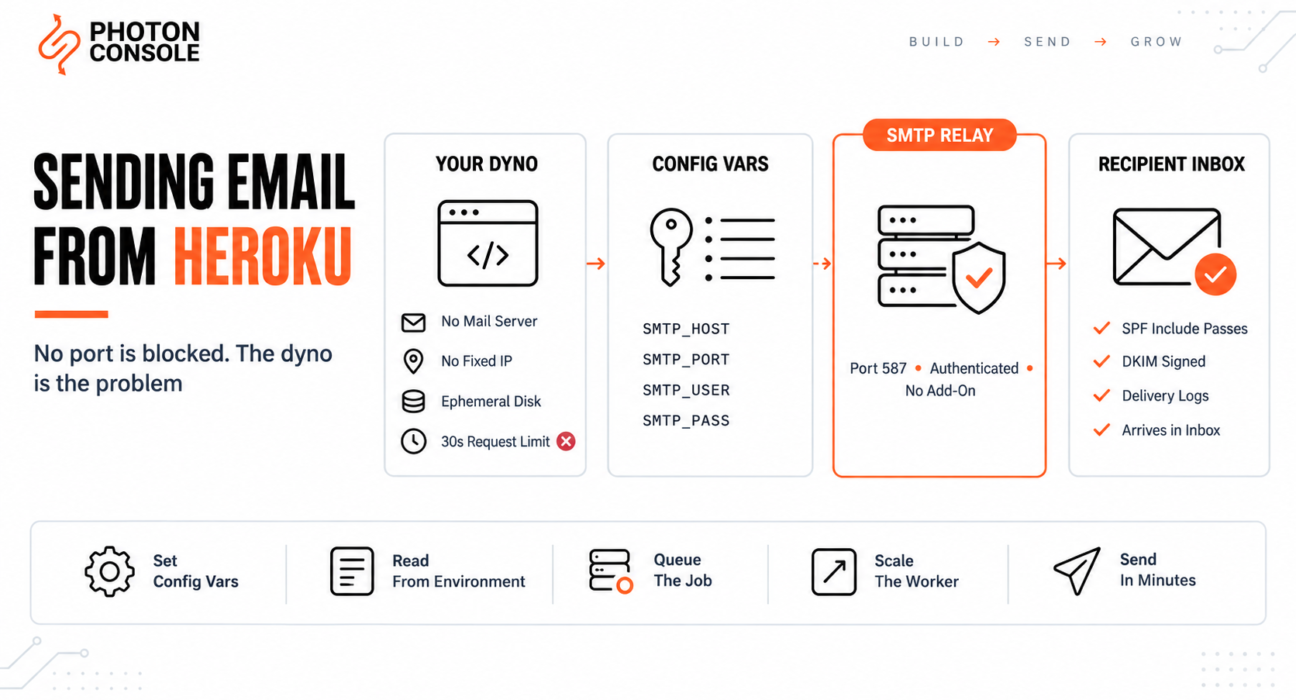
Signup works perfectly on your laptop. You deploy to Heroku, create an account on the live site, and the request hangs. Thirty seconds later the browser shows an application error and your log records H12.
No email arrives. The obvious next move is to look for a blocked port — but Heroku is not blocking anything.
Heroku email problems come from the dyno, not from the network. A dyno has no mail server, no fixed outbound address, and no filesystem that survives a restart. Those three facts explain almost every failure, and none of them are fixed by changing a port.
Quick Answer: How Do You Send Email from Heroku?
Point your application directly at an authenticated SMTP relay on port 587, store the credentials in Heroku config vars, and run the send in a worker process rather than inside the web request.

heroku config:set \
  SMTP_HOST=smtp.photonrelay.com \
  SMTP_PORT=587 \
  SMTP_USER=your_project_api_user \
  SMTP_PASS=your_secret_api_key
There is no local mail server to configure and no add-on required. A relay such as PhotonConsole is reached over the open submission port like any other outbound API call.
Why Heroku Is Different From a Blocked Port
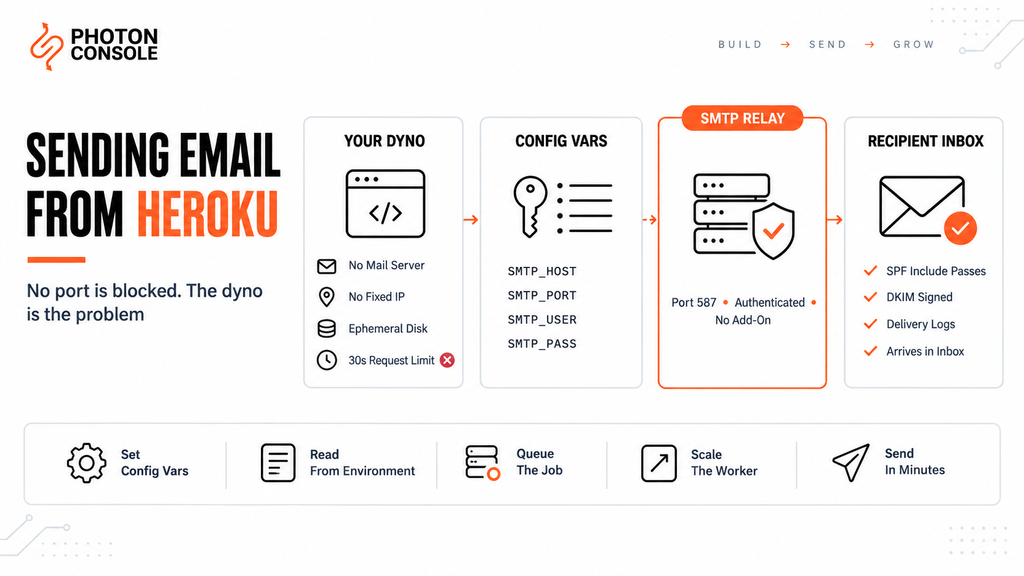
On most hosts the problem is a firewall. On Heroku it is the runtime model.
| Platform | What stops you sending | Can you change it on the host? |
|---|---|---|
| AWS EC2 | Outbound port 25 throttled | Removal request, sometimes granted |
| Google Cloud | Outbound port 25 blocked | No removal process exists |
| DigitalOcean or VPS | Port 25 blocked plus IP reputation | Port sometimes, reputation no |
| Heroku | No mail server and no fixed IP | No — there is nothing to configure |
That last row is the useful one. On Heroku you are not waiting for a support ticket. The relay is the only path, so the work is configuration rather than negotiation.
Constraint 1: There is no local mail server
The dyno image contains your application and its dependencies. It does not contain Postfix, Exim or sendmail. Any code path that assumes a local mail transfer agent has nothing to talk to.
This is why PHP’s mail(), Python’s sendmail backend and shell-based mail commands fail on Heroku while working on a traditional server. The command is missing, not blocked.
Constraint 2: There is no stable outbound IP
Stable outbound addresses are a Private Spaces feature in Heroku’s dyno runtime documentation. On the Common Runtime, where most applications run, they are not offered.
That matters more than it first appears. SPF authorises sending by IP address or by an included domain. If your dyno’s address changes, you cannot list it in SPF, so the dyno can never be an authorised sender for your domain.
Sending through a relay sidesteps this entirely: you authorise the relay’s domain once, and your SPF record stays correct no matter how often dynos cycle. With PhotonConsole the SPF entry is a single include that never needs updating again.
Constraint 3: The request has thirty seconds
The Heroku router terminates any web request that takes longer than 30 seconds and writes error code H12 to your logs. The timeout is not configurable.
An SMTP send involves a DNS lookup, a TCP connection, a TLS handshake, authentication and message transfer. On a slow network path that can exceed the window — and when it does, the user sees an error even if the mail eventually goes out.
Quick Fix
H12 Timeout on Signup or Password Reset
- Move the send out of the web request into a background job
- Return the HTTP response immediately after queueing
- Add a worker process to your
Procfileand scale it to at least one dyno - Set an explicit SMTP connection timeout of 10 seconds or less
- Confirm with
heroku logs --tailthat H12 no longer appears
Step 1: Set the Credentials as Config Vars
Heroku exposes config vars to your application as environment variables. Set them all in one command, because every change restarts the app and creates a new release.
heroku config:set \
  SMTP_HOST=smtp.photonrelay.com \
  SMTP_PORT=587 \
  SMTP_USER=your_project_api_user \
  SMTP_PASS=your_secret_api_key \
  MAIL_FROM=noreply@yourdomain.com

# Confirm they are present on the dyno
heroku config
Common Mistake
Keeping the credentials in a local .env file that is correctly excluded from Git. The file never reaches the dyno, so the variables are undefined — and most mail libraries then fall back to a default host of localhost on port 25. Because no mail server is listening there, the send fails or hangs with no useful error. Config vars are the only route for secrets on Heroku; the .env file is for local development only.
Note
Setting or unsetting a config var restarts every dyno and creates a new release. Set all of them in a single command rather than one at a time, and avoid doing it during a traffic peak. Config vars are also copied into review apps and pipelines, so check that a staging app is not holding stale production credentials.
Step 2: Read Them in Your Application
Each stack reads the same four variables. Keep the values out of code entirely.
// Node.js — Nodemailer
const transporter = nodemailer.createTransport({
  host: process.env.SMTP_HOST,
  port: Number(process.env.SMTP_PORT),
  secure: false,              // STARTTLS on 587
  auth: {
    user: process.env.SMTP_USER,
    pass: process.env.SMTP_PASS
  },
  connectionTimeout: 10000,
  greetingTimeout: 10000
});
# Django — settings.py
import os
EMAIL_BACKEND = "django.core.mail.backends.smtp.EmailBackend"
EMAIL_HOST = os.environ["SMTP_HOST"]
EMAIL_PORT = int(os.environ["SMTP_PORT"])
EMAIL_HOST_USER = os.environ["SMTP_USER"]
EMAIL_HOST_PASSWORD = os.environ["SMTP_PASS"]
EMAIL_USE_TLS = True
EMAIL_TIMEOUT = 10# Rails — config/environments/production.rb
config.action_mailer.delivery_method = :smtp
config.action_mailer.smtp_settings = {
address: ENV.fetch("SMTP_HOST"),
port: ENV.fetch("SMTP_PORT").to_i,
user_name: ENV.fetch("SMTP_USER"),
password: ENV.fetch("SMTP_PASS"),
authentication: :plain,
enable_starttls_auto: true,
open_timeout: 10,
read_timeout: 10
}Reading os.environ["SMTP_HOST"] rather than a .get() with a default is deliberate. A missing variable should crash on boot where you will see it, not silently fall back to localhost.
Our stack guides cover the libraries themselves in depth: Node.js with Nodemailer, Django email configuration, Rails ActionMailer and Laravel mail configuration.
Step 3: Move the Send to a Worker Dyno
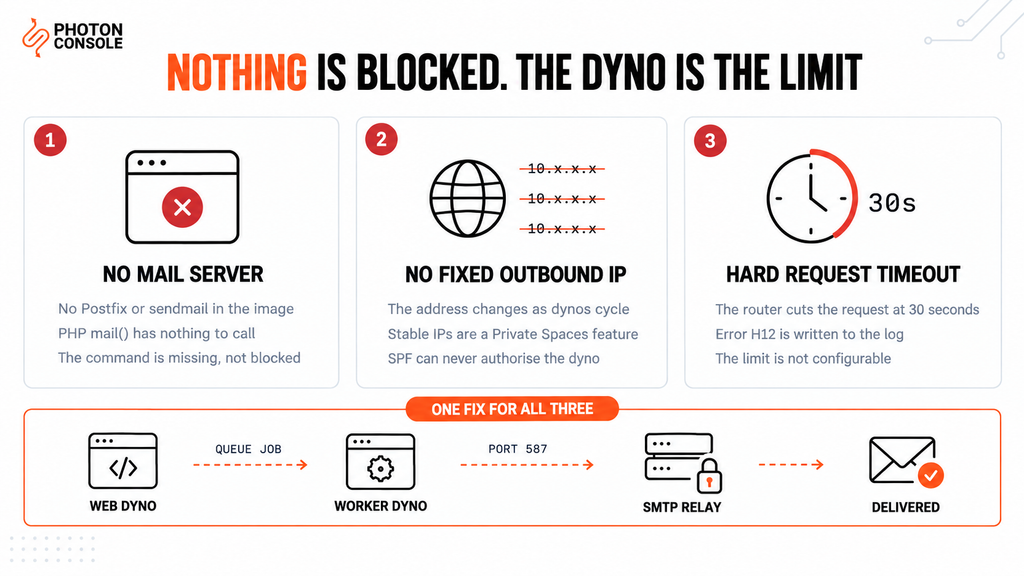
This is the step most guides leave out, and it is the one that removes the H12 errors for good.
A web dyno has 30 seconds. A worker dyno has no such limit. Queue the job in the web request, return the response, and let the worker do the SMTP conversation.
# Procfile
web: gunicorn myapp.wsgi
worker: celery -A myapp worker --loglevel=info
# Scale the worker — it will not run otherwise
heroku ps:scale worker=1
heroku ps# Django view — queue, do not send
from .tasks import send_welcome_email
def register(request):
user = create_user(request.POST)
send_welcome_email.delay(user.id) # returns immediately
return redirect("welcome")The queue itself must live outside the dyno. The dyno filesystem is ephemeral — anything written is discarded when the dyno stops or restarts, including automatic restarts. Use Heroku Redis or Postgres as the broker, never a file on disk.
| Where the send runs | Time limit | Retries possible | Suitable for production |
|---|---|---|---|
| Inside the web request | 30 seconds, hard | No | No |
| Worker dyno with a queue | None | Yes, with backoff | Yes |
| Scheduler or one-off dyno | Process lifetime | Only on next run | Batch jobs only |
Our guide to transactional email queue architecture covers retry policy, dead-letter handling and idempotency in detail.
Step 4: Publish Your DNS Records
TXT    @                    v=spf1 include:relay.photonconsole.com ~all
CNAME  photon._domainkey    dkim.photonconsole.com
Because the dyno has no fixed address, the relay’s domain is what your SPF record authorises. This is the part that makes delivery work rather than merely making the send succeed.
Authentication failures are one of the most common causes of email delivery problems, and receiving providers including Gmail now expect aligned SPF and DKIM on bulk and transactional mail alike.
Our guide to SPF, DKIM and DMARC explains the records, and the free email deliverability checker shows what your domain currently publishes.
Step 5: Test From Inside the Dyno
Testing from your laptop proves nothing about the dyno. Open a shell on the platform instead.
heroku run bash

# Confirm the variables arrived
echo $SMTP_HOST

# Confirm the submission port is reachable
nc -zvw5 smtp.photonrelay.com 587

# Confirm there is no local mail server, as expected
which sendmail || echo "no local MTA — this is normal on Heroku"
# Watch the live log while you trigger a real send
heroku logs --tail --dyno workerQuick Fix
Mail Works Locally but Nothing Happens on Heroku
- Run
heroku configand confirm all four SMTP variables are set - Check the
Procfiledeclares a worker andheroku psshows it running - Look for
localhostor127.0.0.1in the log — that means the variables are not being read - Confirm the queue broker URL is a config var, not a local Redis address
- Check that an Eco dyno has not gone to sleep with jobs still queued
Why Not Just Use an Add-On?
Add-ons are convenient to install, and the trade-off is coupling. Your email provider becomes a line item on your Heroku bill, your credentials live inside the add-on’s provisioning, and your sending reputation is tied to a plan you did not configure directly.
Add-on catalogues also change. Providers join and leave the marketplace, and a migration forced by someone else’s roadmap is a migration you did not plan for.
Configuring a relay directly takes the same four config vars and keeps the mail path independent of the host. If you later move the application to a container platform or back to a server, the email configuration moves unchanged. A reliable SMTP provider reached over standard credentials works the same way from any runtime.
Port Reference on Heroku
| Port | Purpose | On a Heroku dyno |
|---|---|---|
| 25 | Server-to-server mail relay | Irrelevant — no local mail server exists |
| 587 | Authenticated submission | The standard choice |
| 465 | Submission over implicit SSL | Works if your library prefers it |
| 2525 | Unofficial fallback | Available if 587 is unreachable |
Port 587 is the submission port defined in RFC 6409 for authenticated clients, which is exactly what a dyno is. PhotonConsole accepts submission on 587, 465 and 2525, so a library that insists on implicit TLS needs no workaround.
Pro Tips
- Always set an explicit timeout. Ten seconds or less. A library default of 60 seconds guarantees H12 errors the moment the network is slow.
- Scale the worker before you test. A declared worker that was never scaled silently queues jobs forever.
- Do not use an Eco dyno for mail. A sleeping dyno processes nothing. Worker dynos on a paid tier stay awake.
- Keep review apps on separate credentials. Inherited production config vars mean test signups send real email to real addresses.
- Log the message ID the relay returns. It is what turns “the user says it never arrived” into a two-minute lookup.
- Score a real send before launch. Mail Tester catches authentication problems before your users do.
Related Issues You May Hit Next
- Email working in dev but failing in production — the general form of this problem
- SMTP connection timeouts when the handshake hangs rather than fails
- AWS EC2 port 25 blocked if you move the app to EC2
- Sending email from a VPS where the IP reputation problem appears
- Emails sent but not delivered when the log reports success
Frequently Asked Questions
Does Heroku block SMTP ports?
No. Outbound connections on the submission ports work from a dyno. The obstacle is that there is no local mail server to send through, which is a different problem from a blocked port.
Why does my signup request time out after 30 seconds?
The Heroku router enforces a hard 30-second limit and logs H12. A synchronous SMTP send inside the request can exceed it. Move the send to a worker dyno.
Can I use PHP mail() or sendmail on Heroku?
No. Neither exists in the dyno image. Configure your framework’s SMTP transport with config var credentials instead.
Do I need a Heroku add-on to send email?
No. Any SMTP relay works with four config vars. Configuring it directly keeps the mail path independent of your hosting bill.
Can I add my Heroku IP to my SPF record?
Not reliably. Stable outbound addresses are a Private Spaces feature, so on the Common Runtime the address changes. Authorise your relay’s domain with an SPF include instead.
Where should SMTP credentials live on Heroku?
In config vars, set with heroku config:set. A local .env file is never deployed, and the dyno filesystem does not persist.
Will my queued emails survive a dyno restart?
Only if the queue is external. Heroku restarts dynos automatically, and the filesystem is discarded each time, so use Redis or Postgres as the broker rather than a file on disk.
Conclusion
Heroku email failures look like network problems and are not. The platform blocks nothing. It simply gives you a container with no mail server, no fixed outbound address and a hard 30-second ceiling on web requests.
Once those three constraints are visible, the fix is short. Put the relay credentials in config vars, read them from the environment, move the send into a worker dyno with an external queue, and authorise the relay’s domain in SPF.
A dedicated transactional email solution is the natural fit for this runtime, because the only thing the dyno needs is a host, a port and a credential — no mail server to install and nothing to maintain between deploys. Pricing starts with 5,000 free emails per month, enough to confirm the full path from web dyno to inbox before you spend anything.