


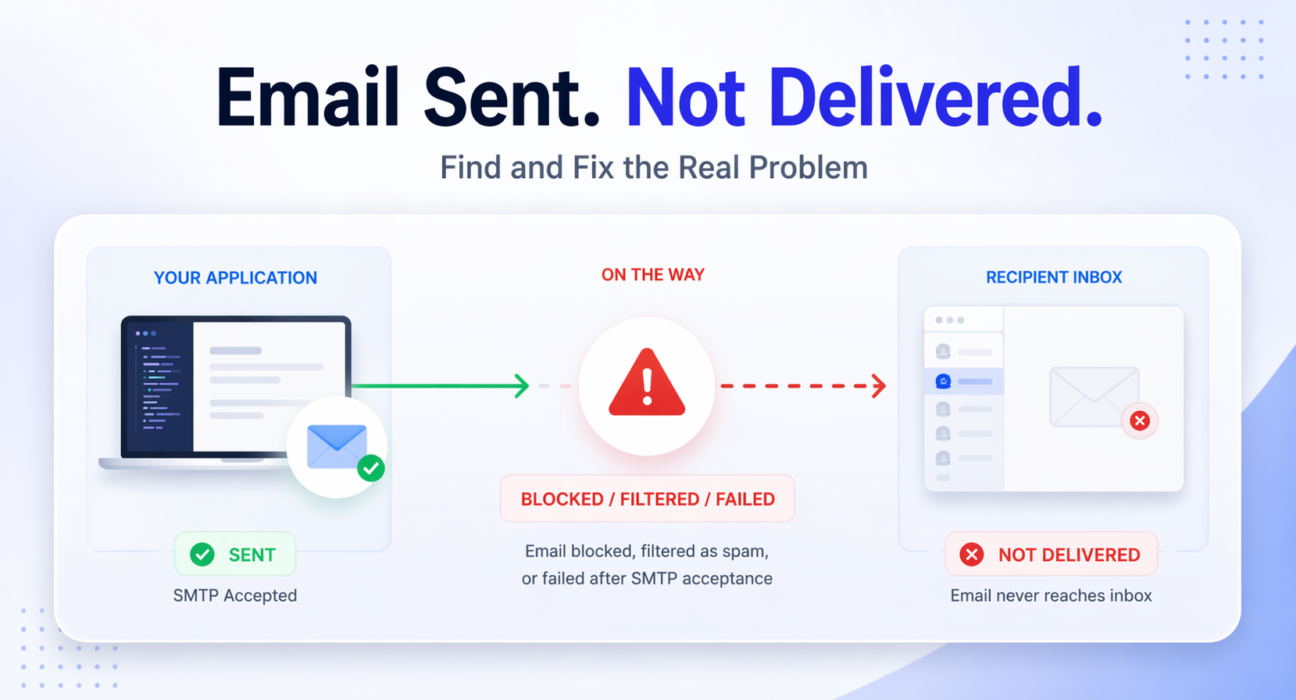
Your application fires off an email. Your code returns a success response. The SMTP server accepts the message. And then – nothing. The recipient never sees it. No OTP arrives. The signup confirmation disappears. The invoice never lands.
This is one of the most frustrating problems in email infrastructure because everything looks correct on your end. No error. No bounce. Just silence.
The core issue is a widely misunderstood gap: SMTP acceptance is not the same as email delivery. An SMTP server can accept your message and still have it blocked, silently dropped, delayed, or buried in spam before it ever reaches the recipient’s inbox.
This guide walks through every real cause of this problem, how to diagnose it precisely, and how to fix it — permanently.
Quick Answer: Why Are Emails Sent But Not Delivered?
If your email shows as sent but is not received, the most common causes are:
- The email was flagged as spam and silently discarded by the recipient’s mail server
- SPF, DKIM, or DMARC authentication is missing or misconfigured
- Your sending IP or domain has a poor reputation
- The recipient’s mailbox is full or their server is temporarily rejecting messages
- Your SMTP relay is misconfigured and accepted the message but did not forward it correctly
- The email was delivered to the spam or junk folder, not the inbox
- A soft bounce occurred that was silently retried and eventually dropped
Each of these requires a different fix. The sections below walk through all of them with diagnostic steps.
SMTP Success Does Not Mean Delivery Success
This is the fundamental concept most developers miss. When your application sends an email, it connects to an SMTP server and submits the message. If the SMTP server accepts the message, it returns a 250 OK response. Your application records this as “sent.”
But that 250 OK only means the SMTP server accepted responsibility for the message. It does not mean the message was delivered. From that point forward, the email travels through multiple hops — outbound servers, DNS lookups, recipient mail servers, spam filters, and content scanners — before it reaches (or fails to reach) an inbox.
Any one of those hops can cause silent failure. Understanding this is the first step to diagnosing the problem correctly.
For a deeper technical breakdown of what each SMTP response actually means, see this guide on SMTP response codes explained.
Root Causes: Why Emails Fail After Being Sent
1. Spam Filtering at the Recipient’s Server
Most enterprise mail servers and consumer email providers (Gmail, Outlook, Yahoo) run aggressive spam filters. These filters evaluate your email before it reaches the inbox. If the message scores poorly, it is either moved to spam or silently discarded — and your sending server receives no error because the recipient’s server technically accepted the message.
Common spam triggers include:
- Missing or invalid authentication headers (SPF, DKIM)
- Suspicious subject lines or excessive links
- Sending from a new or low-reputation domain
- High complaint rates from previous sends
- Mismatched From address and actual sending domain
If you are seeing deliverability issues specifically with Gmail, this guide on why emails go to spam in Gmail covers the specific filters and how to pass them.
2. SPF, DKIM, or DMARC Misconfiguration
Authentication failures are one of the most common causes of email delivery issues. If your domain’s DNS records do not authorize the sending server, recipient mail servers will distrust your messages — and often discard them without notification.
- SPF failure: Your sending IP is not listed in your domain’s SPF record
- DKIM failure: The DKIM signature on the message does not match the public key in your DNS
- DMARC failure: Your DMARC policy instructs the recipient server to reject or quarantine unauthenticated mail
These three records work together to prove that you are who you say you are. Missing even one of them significantly increases the chance of non-delivery. For a plain-language explanation of all three, see this guide on SPF, DKIM, and DMARC explained simply.
3. Poor IP or Domain Reputation
Every sending IP address and domain carries a reputation score. Mail servers check these scores against real-time blocklists such as Spamhaus, Barracuda, and SORBS. If your IP is listed, recipient servers may silently reject all mail from it — even legitimate transactional emails.
Reputation problems occur when:
- You send from a shared hosting IP used by spammers
- A previous tenant of your dedicated IP had poor practices
- Your bounce rate or complaint rate exceeds acceptable thresholds
- You send large volumes without a proper warm-up period
You can check your IP reputation using MXToolbox Blacklist Checker and Mail Tester.
4. SMTP Misconfiguration
Most SMTP errors occur due to misconfiguration. If your SMTP server settings — host, port, authentication credentials, TLS mode — are even slightly incorrect, the server may accept connections but route messages incorrectly, causing silent delivery failures.
Common misconfigurations include:
- Using port 25 instead of 587 or 465 (many providers block outbound port 25)
- Incorrect TLS/SSL settings causing unencrypted connections that get blocked
- Wrong SMTP hostname leading to routing through an unintended server
- Authentication credentials that are accepted but do not authorize full delivery
See the full walkthrough in this guide on SMTP not working for a checklist of configuration points to verify.
5. Infrastructure and Server-Side Issues
Self-hosted SMTP servers and shared hosting email infrastructure often have underlying problems that cause messages to be accepted but never forwarded. Queue processing failures, DNS misconfiguration on the sending server, or relay restrictions can all produce the “sent but not delivered” symptom.
For a broader look at infrastructure-level failures, see this post on email infrastructure failures and what causes them.
6. Recipient-Side Issues
Sometimes the problem is not with your setup at all:
- The recipient’s mailbox is full and rejecting new messages
- The recipient’s domain is experiencing a temporary outage
- The email address is incorrect or no longer active
- The recipient’s mail server has rate-limited your sending IP
How to Diagnose the Problem: Step-by-Step
Step 1: Read Your SMTP Logs
Your SMTP server or sending application maintains logs that capture the actual server responses at every delivery attempt. Do not rely on the “sent” status in your application — go to the raw logs.
Look for:
250 OK— accepted by the receiving server421or450— temporary failure (soft bounce), will retry550or553— permanent rejection (hard bounce)421 Too many connections— rate limiting in effect- No delivery attempt logged — message may be stuck in queue
For a complete reference on what these codes mean and how to act on them, see this guide on SMTP response codes.
Step 2: Check Authentication Records
Use these tools to verify your DNS authentication setup:
- SPF: MXToolbox SPF Checker
- DKIM: MXToolbox DKIM Checker
- DMARC: MXToolbox DMARC Checker
- Overall score: Mail Tester (send a test email and get a full deliverability report)
Step 3: Test Your SMTP Server Directly
Send a raw SMTP test using Telnet or a dedicated SMTP testing tool to verify your server is responding correctly and actually forwarding messages — not just accepting them.
This guide on how to test an SMTP server step by step walks through the exact commands and what to look for in the responses.
Step 4: Check IP Reputation and Blacklists
- Go to MXToolbox Blacklist Checker
- Enter your sending IP address
- Review results — if listed on any major blacklist, request removal via that list’s delisting process
- Investigate why you were listed and address the root cause before delisting
Step 5: Analyze Inbox Placement
An email that lands in the spam folder is technically “delivered” but practically invisible. Use Mail Tester or GlockApps Inbox Tester to check where your emails actually land across major providers.
Step 6: Review SMTP Authentication Errors
If you are seeing authentication-related failures in your logs, this guide on SMTP authentication errors covers the most common causes and how to resolve each one.
Quick Fix: Authentication Checklist
- Verify your SPF record includes your sending server’s IP
- Confirm DKIM is enabled and the DNS TXT record matches your mail server’s private key
- Set a DMARC policy of at least
p=nonewith a monitoring email to capture failures - Use Mail Tester after each change to confirm your score improves
Real Scenarios: Where This Problem Actually Appears
Scenario 1: OTP Emails Not Being Received
A user tries to log in. Your application sends a one-time password via email. The email never arrives. The user cannot log in. This is arguably the most damaging form of email delivery failure because it directly blocks users from accessing your product.
OTP emails fail for a specific set of reasons:
- They are sent in high volume in short bursts, triggering rate limits
- They often come from shared SMTP infrastructure with poor reputation
- Short, minimal content with a single link can resemble phishing emails to spam filters
- No unsubscribe link (which is appropriate for transactional mail) can sometimes trigger filters that do not distinguish
OTP and authentication emails must be routed through a dedicated transactional email infrastructure — not shared or self-hosted SMTP — to ensure immediate, consistent delivery.
Scenario 2: Transactional Emails Delivered Hours Late
Order confirmations, password resets, and account notifications that arrive hours after the triggering event signal a queue processing problem on your SMTP server or a retry loop triggered by a temporary failure (soft bounce).
In this case, check your SMTP server’s queue status and look for 421 or 450 response codes indicating the recipient server was temporarily unavailable and your server is retrying on a schedule.
Scenario 3: Emails Landing in Spam Instead of Inbox
This is the most common form of “sent but not delivered” — delivered to spam, invisible in practice. If recipients report finding your emails in their junk folder, the fix is primarily authentication and content-based.
Start by reading this guide on how to improve email deliverability, which covers the full set of factors that determine inbox placement.
Quick Fix: If Emails Are Going to Spam
- Authenticate your domain with SPF, DKIM, and DMARC immediately
- Warm up new sending domains gradually — do not send high volumes from a brand new domain
- Avoid spam trigger words in subject lines (free, urgent, act now, guaranteed)
- Keep HTML-to-text ratio balanced and avoid image-only emails
- Include a physical address and unsubscribe link in marketing emails
- Monitor your sender reputation monthly using Google Postmaster Tools
How to Fix Emails That Are Sent But Not Delivered
Fix 1: Set Up Complete Email Authentication
This is the highest-impact fix for most delivery problems. Implement all three records:
- SPF: Add a TXT record to your domain DNS that lists all authorized sending IPs. Example:
v=spf1 include:yourmailprovider.com ~all - DKIM: Generate a public/private key pair. Add the public key to DNS. Configure your mail server to sign outgoing messages with the private key.
- DMARC: Add a DMARC TXT record to receive reports on authentication failures. Start with
p=noneto monitor, then move top=quarantineorp=rejectonce you have confirmed all legitimate mail is authenticated.
Fix 2: Use Dedicated Sending Infrastructure
Shared hosting and generic SMTP servers route mail through IPs shared with thousands of other senders. If any of those senders engage in spam, your deliverability suffers. Dedicated sending infrastructure gives you control over your IP reputation and sending behavior.
Fix 3: Monitor and Manage Bounce Rates
High bounce rates damage your sender reputation. Clean your email list regularly, suppress hard bounces immediately after the first occurrence, and monitor complaint rates to stay within acceptable thresholds (below 0.1% for most providers).
Fix 4: Resolve SMTP Configuration Errors
Audit your SMTP settings against your provider’s documentation. Use port 587 with STARTTLS for most configurations. Verify credentials, hostname, and TLS version requirements. For a full checklist of SMTP testing methods, see this guide on SMTP testing methods.
Why SMTP Relay Solves This Problem
Self-managed SMTP servers introduce several compounding problems: you are responsible for IP reputation, authentication setup, queue management, bounce handling, and ongoing deliverability monitoring. Each of these is a potential failure point.
A dedicated SMTP relay service handles all of this at the infrastructure level:
- Sending IPs are pre-warmed and reputation-managed
- SPF and DKIM are pre-configured for your sending domain
- Delivery logs give you full visibility into what happened to every message
- Bounce and complaint handling is automated
- Retry logic is built in for temporary failures
The result is a higher delivery rate with significantly less operational overhead. For a broader look at transactional email infrastructure options, see this guide on transactional email services.
PhotonConsole is a cloud-based email delivery service built specifically for developers and growing businesses. It provides a reliable SMTP relay with full email logs, SPF and DKIM support, and pay-as-you-use pricing — so you only pay for what you actually send. If you are consistently seeing emails sent but not delivered, it is worth routing your mail through infrastructure designed to solve exactly that problem.
When Should You Switch to a Dedicated SMTP Relay?
Consider moving to a dedicated SMTP relay service if you are experiencing any of the following:
| Signal | What It Indicates |
|---|---|
| Repeated delivery failures with no clear error | Infrastructure or reputation problem you cannot control on shared SMTP |
| OTP or transactional emails consistently delayed | Queue management or rate limiting issue on self-hosted server |
| Emails going to spam across multiple providers | IP or domain reputation damage requiring clean infrastructure |
| No visibility into what happened to a sent email | Lack of delivery logs — a core feature of any dedicated relay |
| Sending volume growing and delivery rates dropping | Scaling issue that self-hosted SMTP cannot handle reliably |
| Authentication setup failing repeatedly despite fixes | Infrastructure-level issue easier solved by switching than debugging |
If three or more of these apply to your situation, continuing to debug a self-managed SMTP setup will cost more time than migrating to a dedicated service. See the comparison of options in this guide on the best SMTP relay services.
Platform-Specific Notes
WordPress
WordPress uses the PHP mail() function by default, which does not authenticate mail and relies on the hosting server’s local sendmail configuration. Most modern hosting environments block or throttle this, causing emails to silently fail.
Fix: Install a plugin such as WP Mail SMTP and configure it to use an authenticated SMTP relay. Point it to your relay credentials (host, port 587, username, password) and enable STARTTLS. This alone resolves the majority of WordPress email delivery failures.
Gmail and Google Workspace
Gmail’s spam filters are among the strictest. If your emails are reaching Gmail users’ spam folders, verify your DMARC policy and check Google Postmaster Tools for domain and IP reputation scores. Gmail also enforces sender guidelines — bulk senders must maintain complaint rates below 0.1% and use authenticated domains.
Microsoft Outlook and Office 365
Outlook applies its own filtering logic called SmartScreen. Emails that fail DKIM verification or come from IPs with low reputation are routed to junk. Microsoft also maintains its own blocklist — check your IP at the Microsoft Sender Support portal if you are seeing consistent failures to Outlook addresses.
Node.js Applications
If you are using Nodemailer, ensure you are configuring it with an authenticated SMTP relay rather than the default localhost transport. Set secure: true for port 465, or secure: false with requireTLS: true for port 587. Unauthenticated or poorly configured Nodemailer setups are a very common source of “sent but not delivered” failures.
Pro Tips for Permanent Deliverability
- Never send cold outreach from the same domain as transactional mail. Use a subdomain (mail.yourdomain.com) for marketing and keep your root domain reputation clean for OTP and notifications.
- Set up DMARC reporting. Even in monitoring mode (
p=none), DMARC reports tell you exactly which servers are sending mail on your domain’s behalf and whether authentication is passing. - Monitor your sending IP monthly. Use MXToolbox or similar tools to check blacklist status proactively, not reactively after delivery fails.
- Keep your list clean. Remove hard bounces after the first occurrence. Suppressing bad addresses prevents reputation damage before it happens.
- Test before every major send. Use Mail Tester to get a deliverability score before any bulk campaign. Aim for 9 out of 10 or higher.
- Use a dedicated IP for high-volume sending. Shared IPs are convenient but unpredictable. High-volume senders should request a dedicated IP and warm it up properly over 4–6 weeks.
Related Issues You May Encounter
- Emails bouncing immediately: Usually a hard bounce caused by invalid addresses or domain-level blocking. Remove the address and investigate the SMTP error code in your logs.
- Emails delayed by hours: Typically a soft bounce retry loop. Your SMTP server is retrying delivery on a schedule after a temporary failure. Check recipient server status and review your retry configuration.
- Reply-to-address not receiving replies: A configuration issue rather than a delivery issue — verify your Reply-To header is correctly set in your email template.
- Emails delivered on desktop but not mobile: A rendering or filtering issue specific to mobile mail clients. Usually caused by broken HTML or image-heavy content flagged by mobile spam filters.
Frequently Asked Questions
Why does my email show as sent but the recipient never receives it?
SMTP acceptance does not guarantee delivery. Your mail server accepted the message but it may have been blocked by the recipient’s spam filter, rejected due to authentication failure, discarded because your IP is blacklisted, or routed to the spam folder. Check your SMTP logs for the actual delivery response code from the recipient’s server.
How do I fix emails that are sent but not delivered?
Start by setting up or correcting SPF, DKIM, and DMARC authentication. Then check your sending IP against major blacklists using MXToolbox. Review your SMTP logs for delivery response codes. If you are using shared or self-hosted SMTP, consider switching to a dedicated SMTP relay service to gain full delivery visibility and pre-warmed IP infrastructure.
What does it mean when SMTP says sent but email is not received?
It means your SMTP server accepted the message (250 OK) but a downstream server — either an intermediate relay or the final recipient’s mail server — rejected, delayed, or silently discarded it. The 250 OK code only covers the handoff to your own SMTP server, not end-to-end delivery.
Can a correctly sent email still go to spam?
Yes. Delivery to the spam folder is technically successful delivery from an SMTP perspective but is functionally a failure. Spam folder placement is determined by the recipient’s mail server based on authentication results, IP reputation, content analysis, and sending history. Improving these factors moves emails from spam to the inbox.
How do I know if my email was actually delivered?
Use a dedicated SMTP relay service that provides delivery logs and tracking. These logs show the exact response received from the recipient’s server for every message, including whether it was accepted, bounced, or deferred. Read receipts and open tracking pixels also indicate delivery, but both require the recipient to take an action.
Does SPF alone guarantee email delivery?
No. SPF is one authentication layer. Modern mail servers require passing SPF, DKIM, and DMARC alignment together before treating a message as fully authenticated. A domain with only SPF still fails DMARC checks if DKIM is missing, and this can result in messages being rejected or spam-filtered despite the SPF record being valid.
Conclusion
The phrase “emails sent but not delivered” describes a gap between what your application reports and what actually happens to the message in transit. SMTP success is the beginning of the delivery process, not the end.
Every email you send passes through authentication checks, IP reputation lookups, spam filters, and recipient server logic before it reaches an inbox — or fails to. Getting this right requires either deep operational investment in your own email infrastructure or routing your mail through infrastructure that handles it for you.
If you are consistently losing emails after the send step, the most effective path forward is to move to a dedicated SMTP relay service with full delivery logging, authenticated sending IPs, and built-in deliverability infrastructure. PhotonConsole is built for exactly this — developers and businesses who need email to actually arrive, every time, at a cost that scales with their usage.
Review PhotonConsole’s pricing and get started with your first 1,000 emails to see the difference proper infrastructure makes.


Why Are My Emails Delayed? Causes, Diagnosis, And Fixes | Photonconsole.com
April 21, 2026[…] Emails Sent But Not Delivered? Here Is Why… […]
Why Are My Emails Delayed? Fix It Fast | Photonconsole
April 21, 2026[…] Emails Sent But Not Delivered? Here Is Why… […]
Emails Delayed? Fix It Fast & Boost Delivery | Photonconsole
April 21, 2026[…] Emails Sent But Not Delivered? Here Is Why… […]
SMTP Relay For Transactional Emails: How To Choose The Right One | Photonconsole.com
April 21, 2026[…] Emails Sent But Not Delivered? Here Is Why… […]
SMTP Configuration Step By Step: The Complete Setup Guide | Photonconsole.com
April 21, 2026[…] Emails Sent But Not Delivered? Here Is Why… […]
Best SMTP Relay For Transactional Emails (2026 Guide)
April 21, 2026[…] work with. No logs, no event trail, no diagnosis path. This is explored in detail in our guide on emails sent but not delivered — the most common support scenario that standard SMTP leaves teams completely unable to […]
Best SMTP Relay Service For Transactional Emails In 2026: A Decision Framework That Actually Works | Photonconsole.com
April 21, 2026[…] once and forget. It is a critical component of your product’s trust layer. Understanding why emails sent are not delivered — even when your application reports success — starts with understanding what your relay is […]
SMTP Connection Timeout Error: Causes & Fixes (2026 Guide)
April 21, 2026[…] placement rates. And if your emails are sending without errors but still not reaching users, the emails sent but not delivered troubleshooting guide covers the next layer of […]
Best SMTP Relay Services For Transactional Emails (2026)
April 21, 2026[…] once and forget. It is a critical component of your product’s trust layer. Understanding why emails sent are not delivered — even when your application reports success — starts with understanding what your relay is […]
SMTP Monitoring Tools For Transactional Email Infrastructure: An Engineering Guide | Photonconsole.com
April 21, 2026[…] relay-level causes of this failure pattern, the emails sent but not delivered guide covers diagnosis and resolution […]
How To Reduce Email Bounce Rate For SaaS Applications: A Production Infrastructure Guide | Photonconsole.com
April 21, 2026[…] Emails sent but not delivered — relay-level diagnosis […]