


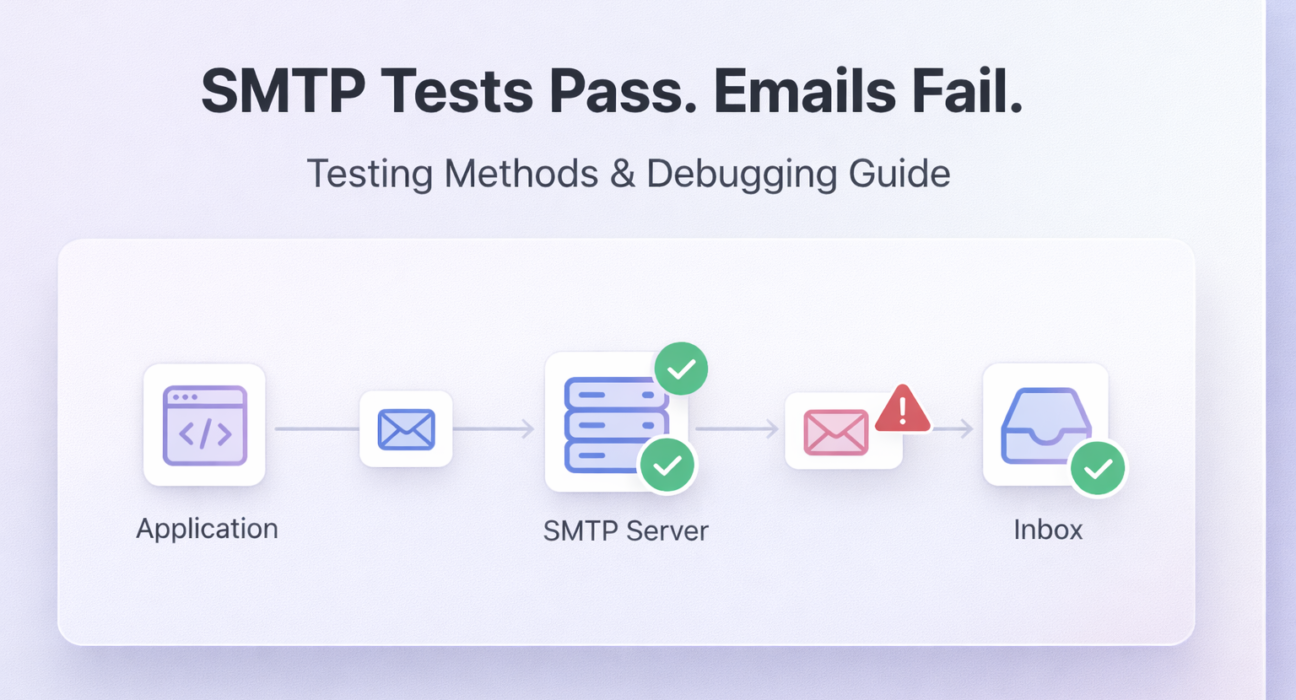
A passing SMTP test is one of the most misleading results in email debugging. It tells you the server answered. It tells you nothing about whether your email reached the inbox, passed authentication, or avoided spam filters – the three things that actually matter. Most teams stop at the connection test. That is exactly where the real failures begin.
This guide covers every SMTP testing method worth using, when to use each one, what correct output looks like, and what to do when the results are wrong. If you are looking for the complete step-by-step testing walkthrough, the full SMTP server diagnostic guide covers the entire process from credential verification to delivery log analysis.
Direct Answer: Why does SMTP testing pass but email delivery still fail?
Because SMTP testing and email delivery are two separate events. An SMTP server returning 250 OK means it accepted the message for relay — not that the message reached the recipient’s inbox. Inbox placement depends on IP reputation, DNS authentication (SPF, DKIM, DMARC), and content scoring, none of which are validated by a basic connection test.

Quick Answer: SMTP Testing Methods That Actually Work
- Telnet or OpenSSL: Raw TCP connection test to confirm the server is reachable on the correct port and responding with a valid SMTP handshake.
- SMTP authentication test: Manually issue AUTH LOGIN or AUTH PLAIN commands via command line to verify credentials independently of your application.
- Port and connectivity scan: Confirm the exact port (25, 465, 587) is open from your server environment — not just from your local machine.
- DNS record validation: Verify SPF, DKIM, and DMARC records are correctly published and aligned using MXToolbox or dig commands.
- End-to-end delivery test: Send a real message to a test inbox tool (Mail-Tester, Mailtrap) and analyze headers, spam score, and authentication results.
- Delivery log analysis: Review SMTP server logs for the actual SMTP response codes returned at each stage of the sending transaction.
Why Most SMTP Testing Advice Is Misleading
Most SMTP testing tutorials tell you to run Telnet, check for a 220 response, and call it done. That advice was incomplete a decade ago. Today it is actively harmful — because it gives teams false confidence at exactly the point where they should keep digging.
Here is the honest problem: a successful Telnet test eliminates exactly one failure category — network-level connectivity. It does nothing for authentication, DNS alignment, IP reputation, content scoring, or inbox placement. If your emails are failing, there is roughly an 80 percent chance the issue is not network connectivity. It is something downstream that a connection test cannot see.
The second piece of misleading advice is testing from the wrong machine. You run Telnet from your MacBook, it connects, and you conclude the server is reachable. Meanwhile your production EC2 instance is sitting behind a security group that blocks all outbound SMTP traffic. The test was technically accurate. The conclusion was completely wrong.
The correct mental model: SMTP testing is a layered diagnostic process. Each layer answers a different question. Skipping layers does not save time — it just moves the failure to a place you cannot see it.
Why Most SMTP Testing Fails to Find the Real Problem
The most common SMTP testing mistake is testing connectivity from the wrong environment. A Telnet test from your local laptop tells you the server is reachable from your IP. It tells you nothing about whether the server is reachable from your production environment, your cloud instance, or your shared hosting server — which may be behind a firewall blocking port 587 entirely.
The second most common mistake is treating a 250 OK response as confirmation that email will be delivered. SMTP acceptance and inbox delivery are two separate events. A server can accept a message and then reject it internally, deliver it to spam, or have it blocked by a downstream provider — none of which surfaces as an error in your application.
Common Mistake Summary: Where SMTP Debugging Goes Wrong
- Testing from a local machine instead of the production server
- Checking port connectivity but not authentication
- Checking authentication but not DMARC alignment
- Treating a
250 OKrelay response as inbox delivery confirmation - Not reading actual SMTP response codes from server logs
- Testing one port while the application is configured for a different one
Effective SMTP testing is layered. Each method answers a different question. Using only one method means leaving entire failure categories invisible.
SMTP Testing Methods: The Complete Breakdown
Method 1: Command-Line Testing with Telnet and OpenSSL
What it is: A raw TCP connection to your SMTP server that lets you manually execute SMTP protocol commands and see exact server responses at each step.
When to use it: First test when you suspect a connectivity or port-blocking issue. Also useful for isolating whether a failure is at the network layer or the application layer.
For unencrypted or STARTTLS connections (port 587 or 25):
telnet smtp.yourdomain.com 587For SSL connections (port 465):
openssl s_client -connect smtp.yourdomain.com:465For STARTTLS:
openssl s_client -starttls smtp -connect smtp.yourdomain.com:587Expected output: A 220 banner response confirming the server is ready. Issue EHLO yourdomain.com — a 250 response listing supported extensions confirms the handshake is complete.
Common errors:
- Connection refused: Port is blocked at the firewall level. Try alternate ports or contact your hosting provider.
- Connection timeout: The server is unreachable from your current IP. Test from your production server — results will differ from local.
- SSL handshake failure: TLS configuration mismatch. Confirm whether the server expects SSL or STARTTLS on that port.
⚡ Quick Fix: Connection Refused or Timeout on All Ports
Cause: Your hosting provider or cloud security group is blocking outbound SMTP traffic at the network level — not an SMTP server issue at all.
Fix: Run nc -zv smtp.yourdomain.com 587 from your production server. If it times out, the block is environmental. Contact your provider to open port 587 outbound, or switch to an SMTP relay that accepts connections on port 2525 as a fallback.
Method 2: Manual Authentication Testing
What it is: Walking through the full SMTP authentication sequence manually using base64-encoded credentials to isolate credential failures from connectivity failures.
When to use it: When you are getting a 535 Authentication Failed error and need to confirm whether the credentials themselves are wrong or whether the authentication method is misconfigured. The complete SMTP 535 authentication error guide covers every variant of authentication failure with specific resolution paths.
After a successful EHLO response via Telnet or OpenSSL, issue:
AUTH LOGINThe server will return a base64-encoded prompt. Encode your username and password separately:
echo -n "username@yourdomain.com" | base64
echo -n "yourpassword" | base64
Paste each encoded value when prompted.
Expected output: 235 2.7.0 Authentication successful
Common errors:
535 5.7.8 Authentication credentials invalid— credentials are wrong or the account requires app-specific passwords503 Bad sequence of commands— STARTTLS must be issued before AUTH on port 587504 Unrecognized authentication type— server does not support AUTH LOGIN; try AUTH PLAIN
⚡ Quick Fix: AUTH LOGIN Returns 535 But Credentials Are Correct
Cause: The account has two-factor authentication enabled, requires an app-specific password, or the provider has switched to OAuth2 and no longer accepts password-based AUTH LOGIN.
Fix: Generate an app-specific password in Gmail or Outlook security settings. If the server advertises AUTH XOAUTH2 in its EHLO response but not AUTH LOGIN, password-based authentication is disabled at the provider level — not a configuration error you can fix on your end.
Method 3: Port and Connectivity Scanning
What it is: Verifying that the specific port your application is configured to use is actually open and reachable from your production environment.
When to use it: When Telnet works locally but your application cannot connect from the server. Many cloud providers (AWS, GCP, Azure) and shared hosting environments block outbound port 25 by default. Some block 587 as well.
From your production server:
nc -zv smtp.yourdomain.com 587
# or
curl -v telnet://smtp.yourdomain.com:587
On Windows from the production environment:
Test-NetConnection -ComputerName smtp.yourdomain.com -Port 587Expected output: Connection to smtp.yourdomain.com 587 port [tcp/*] succeeded
Common errors:
- Connection timed out from server but not local: Your hosting environment is blocking outbound SMTP. Contact the provider or switch to an SMTP relay that supports port 2525 or HTTPS-based submission.
- Connection refused on all ports: The SMTP host is wrong or the server is down. Verify the hostname resolves correctly with
nslookup smtp.yourdomain.com.
Method 4: DNS Record Validation
What it is: Verifying that your SPF, DKIM, and DMARC records are correctly published, syntactically valid, and properly aligned with your From address.
When to use it: When authentication passes at the SMTP level but emails are still landing in spam or being rejected by specific providers. DNS misconfiguration is one of the most common root causes of spam placement. The SPF, DKIM, and DMARC explained guide covers exactly how alignment failures produce spam placement even when individual authentication checks report as passing.
Check SPF:
dig TXT yourdomain.com | grep spfCheck DKIM (replace selector with your actual selector key):
dig TXT selector._domainkey.yourdomain.comCheck DMARC:
dig TXT _dmarc.yourdomain.comExpected output: Valid TXT records for all three. SPF should contain your sending server’s IP or include directive. DMARC should show p=quarantine or p=reject for production domains.
Common errors:
- SPF permerror: More than 10 DNS lookups. Flatten your SPF record by replacing include directives with resolved IP ranges.
- DKIM record not found: Key not published or wrong selector. Verify the selector your SMTP provider is using.
- DMARC alignment failure: The domain in SPF or DKIM does not match the From header. Ensure the signing domain matches your visible From address.
⚡ Quick Fix: SPF and DKIM Both Pass But DMARC Still Fails
Cause: DMARC alignment failure — the domain authenticated by SPF or DKIM does not match the domain in the From header the recipient sees. Each check passing in isolation is not enough; the domains must align.
Fix: In your DMARC record, confirm whether you are using strict (aspf=s) or relaxed (aspf=r) alignment. Check that the envelope-from domain (SPF) and the DKIM signing domain (d= tag) both match or subdomain-match your From address. If using a third-party sender, they must sign with your domain, not theirs.
Method 5: End-to-End Delivery Testing
What it is: Sending a real message through your full stack and analyzing the result — spam score, authentication headers, and inbox placement — using a dedicated testing inbox.
When to use it: After all lower-level tests pass. This confirms that the full pipeline — application to SMTP relay to recipient inbox — works correctly. The Gmail spam placement breakdown explains how inbox providers score incoming messages and what specifically triggers spam routing even after authentication passes.
Send to Mail-Tester‘s generated address, then check the score report for: SPF result, DKIM result, DMARC result, content spam score, blacklist status, and header analysis.
Expected output: Score of 9 or higher out of 10. SPF, DKIM, and DMARC all showing as passed and aligned.
Common errors:
- Low score despite passing authentication: Content triggers — too many links, URL shorteners, spam-flagged phrases in subject or body.
- Blacklist hit: Your sending IP is on one or more major blacklists. Check via MXToolbox Blacklist Checker and follow their delisting process.
Which Testing Method to Use: Decision Framework
Running all five methods every time is overkill. Use this decision tree to go directly to the right test for your actual problem:
| Your Symptom | Start With | Skip |
|---|---|---|
| Application cannot connect to SMTP server at all | Method 3 (port scan from production), then Method 1 (Telnet) | Methods 4 and 5 — DNS and deliverability are irrelevant until connectivity is confirmed |
| Connection works but getting 535 error | Method 2 (manual auth test) to isolate credential vs method issue | Methods 3, 4, 5 — port is fine, DNS is not the issue here |
| Emails send successfully but land in spam | Method 4 (DNS validation), then Method 5 (end-to-end delivery test) | Methods 1 and 3 — connectivity is working; this is a reputation or authentication problem |
| Emails deliver to Gmail but get rejected by Outlook / Microsoft 365 | Method 4 (check DMARC policy — Microsoft enforces it strictly), then Method 5 | Methods 1, 2, 3 — the SMTP connection is not the issue |
| Intermittent failures under high volume | Delivery log analysis (check for 421 or 450 rate-limit responses), then review sending behavior patterns | Methods 1 and 2 — the server is reachable; this is a throughput or reputation issue |
| Everything passes but you want baseline confirmation | Method 5 (end-to-end Mail-Tester score) — it covers authentication, content, and blacklist in one report | Nothing — this is the fastest comprehensive single check |
SMTP Testing Tools: Comparison and Best-for-Scenario Guidance
The right tool depends on what layer you are diagnosing. Using a deliverability tool to debug a port-blocking issue wastes time. Using Telnet to investigate a spam reputation problem tells you nothing. Here is how to match tool to problem:
| Tool | Best For | Pros | Cons | Best Scenario |
|---|---|---|---|---|
| Telnet / OpenSSL | Raw connection and auth testing | No setup required, exact protocol visibility | Manual, requires command-line comfort | First diagnostic step for connection failures. If you can only use one tool, use this first. |
| Mail-Tester | Full deliverability scoring | Free, detailed authentication + content report in one test | Limited free tests per day | Best single-tool check after all other fixes. Catches everything: auth, blacklists, content, alignment. |
| MXToolbox | DNS record validation and blacklist checks | Comprehensive, free, covers SPF/DKIM/DMARC independently | Requires knowing which record to check | Best for isolating a specific DNS misconfiguration or checking blacklist status before anything else. |
| Mailtrap | Safe development and staging testing | Catches emails without real delivery, shareable team inbox | Paid for full feature access | Best for dev and staging environments where you cannot send to real recipients. |
| swaks | Scripted, repeatable SMTP transactions | TLS, auth, custom headers, full verbose output | Installation required | Best for CI pipelines and automated regression testing. Replaces manual Telnet at scale. |
| Google Postmaster Tools | Gmail-specific reputation and delivery monitoring | Domain and IP reputation data straight from Google | Gmail only, requires domain verification | Best for teams sending high volume to Gmail. Provides signals unavailable anywhere else. |
Tool Quick-Pick Guide
- I need to debug right now with no setup: Telnet or OpenSSL
- I need one test that checks everything: Mail-Tester
- I need to check DNS records specifically: MXToolbox
- I need to test in dev without sending real email: Mailtrap
- I need to automate SMTP testing in CI: swaks
- My emails fail only for Gmail recipients: Google Postmaster Tools
Real Problems, Root Causes, and Fixes
Problem: SMTP Authentication Failure (Error 535)
Cause: Wrong credentials, incorrect authentication method, or two-factor authentication requiring an app-specific password instead of the account password.
Fix: Generate an app-specific password if using Gmail or Outlook. Verify the AUTH method the server supports (LOGIN vs PLAIN vs OAUTH2). Test credentials manually using the base64 method above before debugging the application layer. Full resolution paths are in the SMTP 535 error resolution guide.
Problem: Emails Passing SMTP but Landing in Spam
Cause: SMTP acceptance and inbox placement are independent events. The relay accepted the message, but receiving server spam filters scored it negatively based on IP reputation, DNS authentication failures, or content signals.
Fix: Run the message through Mail-Tester. Check DMARC alignment — not just SPF and DKIM pass/fail independently. Verify your sending IP is not blacklisted. The complete email deliverability improvement guide covers every factor systematically, including sender reputation, warm-up, and list hygiene.
Problem: Connection Timeout from Production Server
Cause: Outbound SMTP ports are blocked at the hosting or cloud provider level. Common on shared hosting (port 25 blocked) and major cloud platforms (AWS, GCP block port 25 by default).
Fix: Test from the production server, not locally. Try port 587 with STARTTLS or port 465 with SSL. If both are blocked, use an SMTP relay that supports alternate submission ports. Contact your hosting provider to confirm which outbound ports are permitted.
Problem: SMTP Works but Emails Fail for Specific Domains
Cause: The recipient’s mail server has stricter authentication requirements. Microsoft 365 and Outlook enforce DMARC more aggressively than most providers. Your IP may be on a domain-specific blocklist.
Fix: Test delivery specifically to the failing domain. Ensure your DMARC policy is at least p=quarantine. Check MXToolbox for domain-specific blacklist entries. Review SMTP troubleshooting for provider-specific failures if the issue is isolated to Microsoft or specific corporate mail servers.
Problem: Intermittent SMTP Failures Under Load
Cause: Rate limiting by the SMTP server, connection pooling issues in the application, or sending volume spikes triggering spam detection heuristics.
Fix: Implement connection retry logic with exponential backoff. Check your SMTP provider’s rate limits against your peak sending volume. For sustained high-volume sending, the email infrastructure failure patterns guide covers the architectural causes of intermittent failures that simple connection tests will never surface.
⚡ Quick Fix: Emails Fail Only to Outlook / Microsoft 365 Recipients
Cause: Microsoft enforces strict DMARC policy evaluation and runs its own IP reputation database (SmartScreen) independently of standard blacklists. Your setup may pass all standard checks and still fail Microsoft’s filters.
Fix: Check Microsoft’s Smart Network Data Services (SNDS) for your IP reputation. Ensure DMARC is set to at minimum p=quarantine. Submit a delisting request via Microsoft’s Junk Mail Reporting Program if your IP is flagged.
Complete SMTP Diagnostic Checklist (Run in Order)
- Run port connectivity test from the production server — not local:
nc -zv smtp.yourdomain.com 587 - Test raw SMTP connection and EHLO handshake:
telnet smtp.yourdomain.com 587 - Test authentication manually with base64-encoded credentials:
AUTH LOGINvia Telnet session - Validate SPF record:
dig TXT yourdomain.com | grep spf— check for permerror (lookup count > 10) - Validate DKIM record:
dig TXT selector._domainkey.yourdomain.com - Validate DMARC alignment (not just pass/fail):
dig TXT _dmarc.yourdomain.com - Send to Mail-Tester and review full score — confirm score is 9+ out of 10
- Check sending IP against MXToolbox blacklist database
- Review SMTP delivery logs for response codes on recent send attempts
- Inspect raw email headers on a delivered message — check Authentication-Results for what the recipient server actually evaluated
For a full guided walkthrough, the step-by-step SMTP server testing guide works through every layer with expected outputs at each stage.
Advanced Testing: Logs, Headers, and Deliverability Diagnostics
Reading SMTP Response Codes in Delivery Logs
Every SMTP transaction produces a response code at each stage. These codes are the most precise diagnostic data available — more reliable than application-level error messages, which often abstract the underlying SMTP response into generic failure notices.
Key response codes to know:
220— Server ready. Connection established.250— Command accepted. Message delivered to relay.421— Service temporarily unavailable. Server overloaded or rate-limiting.450 / 451— Temporary failure. Retry. Often caused by greylisting or temporary blacklist hits.535— Authentication failed. Credentials or method issue.550— Mailbox unavailable or policy rejection. Permanent failure.554— Message rejected for policy reasons. Often spam content or IP reputation.
Analyzing Email Headers for Delivery Diagnostics
When a message arrives at its destination — whether inbox or spam — the email headers contain a complete audit trail of every hop in the delivery chain. Open a delivered message, view the raw source or “show original” (Gmail), and look for:
- Received headers: Each mail server that handled the message, with timestamps. Large gaps between hops indicate queuing or rate-limiting.
- Authentication-Results header: Shows SPF, DKIM, and DMARC results as evaluated by the receiving server — the definitive record of what the recipient’s server actually saw.
- X-Spam headers: Spam scoring details added by the receiving server. Shows which specific rules triggered and the score contribution of each.
Deliverability Diagnostics Beyond Basic Testing
If all individual tests pass but deliverability is still inconsistent, the problem is almost always one of three infrastructure-level issues: shared IP reputation damage, domain warm-up deficit, or DMARC reporting revealing unauthorized sending sources.
Enable DMARC reporting (rua tag with a reporting email) and review the aggregate XML reports after 48 to 72 hours of sending. These reports show every message claiming to be from your domain, which servers sent them, and whether authentication passed or failed. Unauthorized senders spoofing your domain will appear here — often revealing a security issue that basic testing never surfaces.
Frequently Asked Questions
How do I test SMTP without Telnet?
Use openssl s_client -connect smtp.yourdomain.com:587 -starttls smtp for encrypted connections, or nc -zv smtp.yourdomain.com 587 for a basic port check. The swaks utility handles full SMTP transactions including authentication without manual base64 encoding.
Why does my SMTP test pass locally but fail in production?
Your production environment is likely behind a firewall that blocks outbound SMTP ports. Run connectivity tests from the production server itself — not your local machine. Cloud providers like AWS block port 25 by default; use port 587 or request an outbound mail limit removal.
What does SMTP response code 550 mean?
The recipient’s server permanently rejected the message. Common causes: the destination mailbox does not exist, the sending IP is blacklisted, or the recipient server’s content policy blocked the message. Check MXToolbox for IP blacklist status and review your DNS authentication records.
How do I test DKIM is working correctly?
Send a message to Gmail and view the raw headers. The Authentication-Results header will show dkim=pass if DKIM is working. Alternatively, Mail-Tester shows DKIM pass/fail in its detailed report alongside alignment status.
Can I test SMTP from Windows without installing extra tools?
Yes. Enable Telnet via Control Panel, then use telnet smtp.yourdomain.com 587. For port checking, use PowerShell: Test-NetConnection -ComputerName smtp.yourdomain.com -Port 587. For full SMTP transaction testing, install swaks via WSL.
How often should I run SMTP tests in production?
Automated connectivity and authentication tests should run at minimum daily. Run end-to-end delivery tests after any infrastructure change — new SMTP provider, DNS updates, IP changes, or volume increases. Review DMARC reports weekly for authentication anomalies.
What is the difference between SMTP testing and email deliverability testing?
SMTP testing validates the technical layer: connection, authentication, and relay acceptance. Deliverability testing validates the outcome layer: inbox placement, spam scoring, and authentication alignment as seen by the recipient’s server. Both are required — a passing SMTP test does not guarantee inbox delivery.
What is the fastest single test to confirm email is working end to end?
Send a message to Mail-Tester‘s generated address and review the report. A score of 9+ with SPF, DKIM, and DMARC all passing confirms authentication is correct, the IP is not blacklisted, and content is not triggering spam filters — all in one test.
Conclusion
Proper SMTP testing is not a single command. It is a diagnostic stack — each layer revealing a different category of failure that the previous layer cannot see. Connection testing tells you the server is reachable. Authentication testing tells you credentials work. DNS validation tells you authentication records are correct. End-to-end testing tells you whether the full pipeline produces inbox delivery, not just relay acceptance.
Teams that run only one type of test are solving visible symptoms while invisible failures continue compounding in the background. The combination of command-line tools, DNS validators, and delivery testing tools gives you complete visibility across every stage of the sending pipeline.
For the complete step-by-step process covering every layer from credentials to delivery logs, the SMTP server testing guide is the reference to keep open while you work through a real debugging session.

SMTP Response Codes Explained: Why “250 OK” Still Fails
April 18, 2026[…] SMTP Testing Methods and Tools: Why Your Tests… […]
SMTP Relay Service In 2026: Fix Email Deliverability Issues
April 18, 2026[…] SMTP Testing Methods and Tools: Why Your Tests… […]
Emails Sent But Not Delivered? Fix It Fast | Photonconsole
April 18, 2026[…] SMTP Testing Methods and Tools: Why Your Tests… […]
Why Are My Emails Delayed? Causes, Diagnosis, And Fixes | Photonconsole.com
April 18, 2026[…] For structured testing approaches, see SMTP Testing Methods. […]
SMTP Configuration Step By Step: The Complete Setup Guide | Photonconsole.com
April 18, 2026[…] the SMTP testing methods guide covers all of these diagnostic approaches in detail — including how to read log output and […]
SMTP Connection Timeout Error: Causes & Fixes (2026 Guide)
April 18, 2026[…] deeper guidance on structured SMTP debugging approaches, the SMTP testing methods guide covers a range of tools and techniques for systematic […]
How To Reduce Email Bounce Rate For SaaS Applications: A Technical Guide | Photonconsole.com
April 18, 2026[…] after any infrastructure change catches configuration errors before they affect real users. The SMTP testing methods guide covers this […]
Transactional Emails Failing In Production But Working In Dev: A Debugging Guide | Photonconsole.com
April 18, 2026[…] for spam scoring and authentication analysis. Verify SPF record propagation using MXToolbox. The SMTP testing methods guide covers systematic pre- and post-deployment test […]