


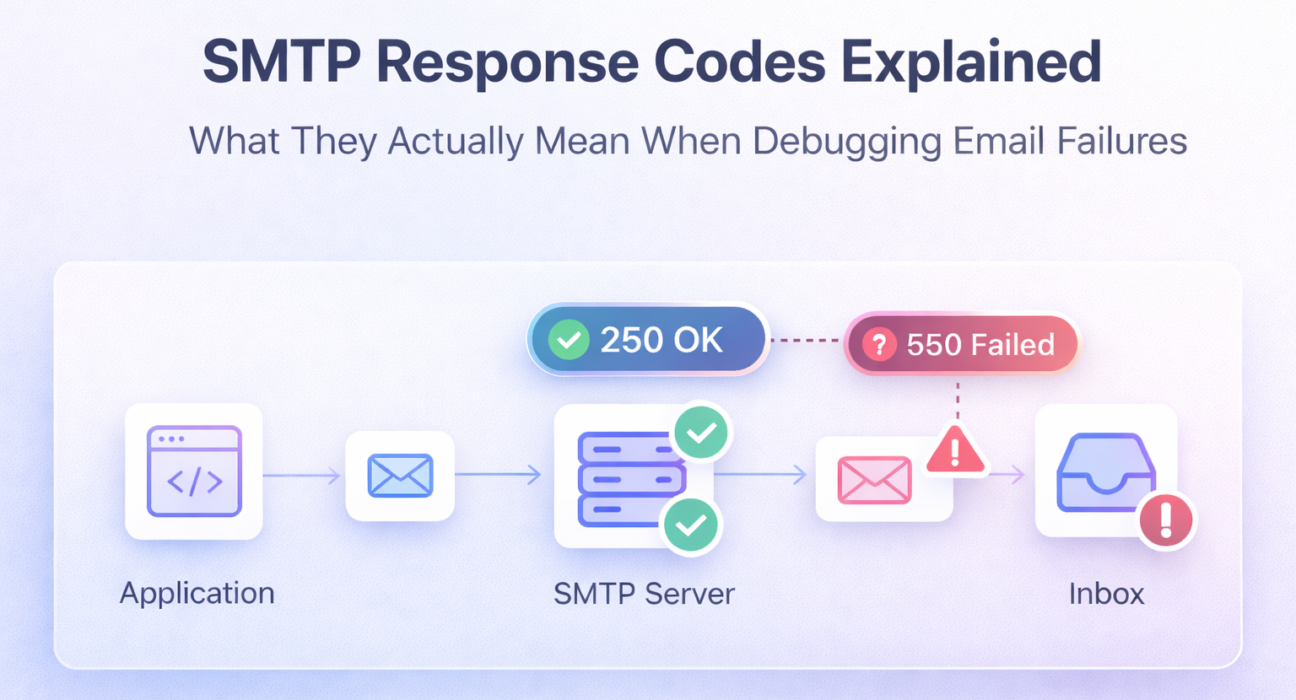
Your SMTP test returns 250 OK and your application reports a successful send. Then the user never gets the email. The code told you the server accepted the message. It told you nothing about what happened next — and that gap is where most email debugging goes completely wrong.
SMTP response codes are the most accurate signal available during email troubleshooting. They are not suggestions. They are protocol-level statements about exactly what succeeded, what failed, and why. Reading them correctly collapses a debugging session that could take hours into a diagnosis that takes minutes. Reading them wrong — or ignoring them in favor of application-level error messages — means you are guessing.
This is the reference you need open while you debug.
Quick Answer: Common SMTP Response Codes and What They Mean

220— Server ready. Connection established successfully.250— Command accepted. Does not confirm inbox delivery.421— Temporary unavailability. Server overloaded or rate-limiting your IP.450— Mailbox temporarily unavailable. Retry is appropriate.451— Local processing error. Often greylisting or a temporary block.535— Authentication failed. Wrong credentials or wrong auth method.550— Mailbox unavailable or policy rejection. Permanent failure — do not retry.554— Message rejected. Typically IP reputation, spam content, or policy block.
What SMTP Response Codes Actually Are
Every command in an SMTP transaction — EHLO, AUTH, MAIL FROM, RCPT TO, DATA — receives a numeric response code from the server. That code is a machine-readable signal with a three-digit structure: the first digit indicates success, temporary failure, or permanent failure. The second and third digits narrow down the specific category and cause.
Your application may surface these as generic error messages. The logs contain the raw codes. The logs are always more accurate.
SMTP Code Categories: The Framework That Makes Everything Else Make Sense
2xx — Success
The command was accepted and processed. The specific code tells you what was accepted — a connection, a message, a recipient address. A 2xx response does not mean the email reached the inbox. It means the server accepted that step of the transaction.
4xx — Temporary Failure
The server could not process the command right now, but the condition may be temporary. These are retriable errors. Your sending application should queue and retry with exponential backoff. If a 4xx persists across multiple retry attempts over hours or days, the underlying condition is unlikely to resolve on its own.
5xx — Permanent Failure
The server will not process this command under any circumstances in its current state. Retrying the same message to the same server will produce the same result. Permanent failures require investigation and a configuration or infrastructure change — not a retry loop. Suppressing the recipient address from future sends is the correct application-layer response to a hard 5xx.
SMTP Response Codes Explained: The Full Debugging Reference
220 — Service Ready
Meaning: The SMTP server is online and ready to accept commands. This is the first response you receive when a TCP connection is established to the SMTP port.
Why it happens: Normal successful connection. The server banner typically includes the hostname and software version alongside the code.
Real-world scenario: You run telnet smtp.yourdomain.com 587 and see:
220 smtp.yourdomain.com ESMTP PostfixThis confirms the server is reachable on that port from your current environment. If you never see this response — if the connection hangs or refuses — the failure is at the network layer, not the SMTP layer. Port is blocked, host is wrong, or the server is down.
Fix: If 220 never arrives, test port connectivity from your production environment using nc -zv smtp.yourdomain.com 587. A timeout from production but not local confirms a firewall or security group is blocking outbound SMTP traffic — not an SMTP server issue.
250 — Requested Mail Action Completed
Meaning: The most common SMTP response code. Returned after successful EHLO, MAIL FROM, RCPT TO, and at the end of a DATA transaction. Each one means the server accepted that specific command.
Why it happens: Normal, correct server behavior at each step of the SMTP handshake.
Real-world scenario: This is the code that misleads most developers. After completing the DATA phase, the server returns:
250 2.0.0 OK: queued as A3F92B1CYour application logs “sent successfully.” The user never gets the email. What happened? The server accepted the message into its outbound queue. What it does next — relay it, filter it, defer it, or drop it — is entirely outside the SMTP transaction you just completed. A 250 after DATA is relay acceptance, not inbox delivery.
Fix: Do not treat 250 as end-to-end confirmation. Implement delivery event webhooks or poll delivery logs if your SMTP provider supports them. For diagnosing where a message goes after 250 OK, end-to-end testing with Mail-Tester or review of the recipient server’s headers is the correct next step. The complete process is in the SMTP server testing guide.
421 — Service Not Available, Try Again Later
Meaning: The server received your connection but is temporarily refusing to process messages. It is telling you to try again later.
Why it happens:
- The server is overloaded and shedding connections
- Your sending IP is being rate-limited due to volume spikes
- The receiving server is in maintenance or a brief outage
- Your sending behavior triggered a soft block — high bounce rate, sudden volume increase
Real-world scenario: You launch a campaign or a batch transactional send after a period of low volume. Multiple recipients at the same provider return:
421 4.7.0 Try again later, closing connectionThis is almost always a rate-limiting signal. Gmail and Outlook both return 421 when they are throttling your IP for sending volume that exceeds your established sending history or when your IP reputation drops below their threshold mid-session.
Fix: Implement retry logic with exponential backoff — minimum 5 to 10 minute intervals, increasing with each attempt. Reduce sending rate. If 421 persists over 24 to 48 hours, the problem has graduated from rate-limiting to a soft reputation block. Check your sending IP against major blacklists and review your domain’s warm-up status. The infrastructure patterns behind persistent 421 failures are covered in the email infrastructure failure guide.
⚡ Quick Fix: 421 Appearing on High-Volume Sends
Cause: Your sending volume exceeded the rate your IP’s reputation supports with that receiving provider. This is not an error you can retry away — it requires behavioral change.
Fix: Reduce concurrent connections to the affected provider. Spread sends over a longer window. If you recently increased sending volume significantly, your IP has not warmed up sufficiently for that volume. The email deliverability improvement guide covers proper warm-up procedure.
450 — Requested Mail Action Not Taken: Mailbox Unavailable
Meaning: A temporary failure tied to the recipient’s mailbox. The server could not process the message right now but believes the condition may change.
Why it happens:
- Recipient’s mailbox is over quota
- Greylisting — the receiving server is intentionally deferring first contact from unknown senders
- Temporary DNS resolution failure on the receiving end
Real-world scenario: A message to a new recipient returns 450 on first send, then delivers successfully on the second attempt 10 minutes later. That is greylisting — a legitimate spam filtering technique where the receiving server temporarily rejects first contact from any unknown sender, then accepts retries from senders that persist. Spambots do not retry. Legitimate mail servers do.
Fix: Retry with a delay of at least 5 minutes. Most greylisting servers whitelist the sender after one or two successful retries. If 450 persists beyond multiple retry attempts over several hours, investigate the specific sub-code text — it will identify whether the cause is quota, DNS, or policy.
451 — Requested Action Aborted: Local Error in Processing
Meaning: The server encountered an internal problem while processing the message. This is a temporary server-side failure, not a problem with your configuration.
Why it happens:
- DNS lookup failure on the receiving server’s end during SPF or DKIM verification
- Internal queue or processing error on the receiving MTA
- Soft policy block due to content scoring — some servers use 451 rather than 550 for these
Real-world scenario: Receiving server returns:
451 4.7.500 Server busy, please try again laterOr, more specifically from Microsoft:
451 4.7.651 The message fails the SMTP and DNS authentication checkThe second example is not a generic server error — it is telling you that SPF or DKIM failed to resolve during authentication. This is a DNS or authentication configuration problem on your end, not a server-side transient issue, despite the 4xx classification.
Fix: Read the full text of the 451 response — the sub-code and message body reveal the actual cause. Generic 451: retry after a delay. Authentication-specific 451: validate your SPF and DKIM records using dig commands before retrying. The SPF, DKIM, and DMARC reference explains how to confirm records are correctly published and aligned.
535 — Authentication Credentials Invalid
Meaning: The AUTH command was issued but the server rejected the credentials. This is a permanent authentication failure for this attempt.
Why it happens:
- Wrong username or password
- Account requires an app-specific password (Gmail, Outlook with 2FA enabled)
- AUTH method mismatch — server expects PLAIN, client is sending LOGIN (or vice versa)
- Account has been suspended or the API key has been revoked
- STARTTLS not issued before AUTH on port 587 — server rejects authentication over unencrypted connection
Real-world scenario: Everything was working. Then someone rotated the email account password and the application kept using the old credentials. Every send attempt returns:
535 5.7.8 Username and Password not acceptedThe application error log shows a generic “SMTP authentication failed” message. The SMTP log shows the exact code and the message text that pinpoints the cause immediately.
Fix: Test the credentials directly via manual SMTP authentication — base64 encode the username and password and issue them through a Telnet or OpenSSL session to confirm whether the credentials themselves are valid before debugging anything else. A full breakdown of every 535 variant with specific fixes is in the SMTP 535 authentication error guide.
⚡ Quick Fix: 535 After SMTP Configuration Change
Cause: Credentials cached in application configuration are out of date, or the provider switched authentication requirements (e.g., app passwords or OAuth2 now required).
Fix: Manually test the current credentials using: openssl s_client -starttls smtp -connect smtp.yourdomain.com:587, then issue AUTH LOGIN and enter base64-encoded credentials at each prompt. If this succeeds, the issue is in your application’s credential storage. If it fails, the credentials themselves are invalid.
550 — Requested Action Not Taken: Mailbox Unavailable
Meaning: A permanent rejection. The recipient server will not accept this message under current conditions. This is the most common hard bounce code and one of the highest-signal responses for diagnosing delivery problems.
Why it happens:
- The recipient email address does not exist
- Your sending IP is blacklisted by the receiving server
- DMARC policy on your domain or the recipient’s domain caused rejection
- The recipient’s server has a policy blocking your domain or IP
- The message content triggered a content filter at the receiving end
Real-world scenario: A bulk send returns 550 from a significant portion of recipients at a specific domain:
550 5.7.1 Message rejected due to local policyThe immediate question: is this address-level (invalid mailboxes), IP-level (blacklisted), or policy-level (content or authentication)? The sub-code and accompanying text answer this. 5.1.1 is an unknown user. 5.7.1 is a policy rejection. 5.7.26 is a DMARC failure specifically. Each requires a different fix.
Fix:
- 5.1.1 / unknown user: Remove from list immediately. This is a hard bounce — retrying causes reputation damage.
- 5.7.1 policy: Check your IP against MXToolbox’s blacklist checker. If clean, review the sending domain’s DMARC policy and content.
- 5.7.26 DMARC failure: Validate SPF and DKIM alignment. This is an authentication infrastructure problem, not a content problem.
554 — Transaction Failed
Meaning: The receiving server rejected the message at the transaction level — not for a specific recipient but for the entire message or session. This is a permanent refusal.
Why it happens:
- The sending IP is on a major blacklist (Spamhaus, Barracuda, etc.)
- The message body triggered a content filter beyond a correctable threshold
- The receiving server has a zero-tolerance policy for the sending domain
- DMARC
p=rejectpolicy caused the entire message to be refused
Real-world scenario:
554 5.7.1 Service unavailable; Client host [x.x.x.x] blocked using SpamhausThis is unambiguous — the sending IP is blacklisted. The specific blacklist is named in the response. No amount of configuration changes will fix this until the IP is delisted from that specific provider.
Fix: Identify which blacklist from the 554 response text. Visit that blacklist’s delisting page directly (Spamhaus, Barracuda, and Invaluement all have self-service delisting for IPs that meet their criteria). While the IP is blacklisted, route sends through a clean relay IP. Investigate what caused the listing — high bounce rate, spam complaints, or a security compromise — before requesting delisting. This is also documented in the broader context of why emails go to spam and how reputation damage compounds over time.
⚡ Quick Fix: 554 IP Blacklist Block
Cause: Your sending IP has been listed on a spam blacklist. The receiving server is enforcing a zero-delivery policy for that IP regardless of message content or authentication.
Fix: Immediately route critical sends through a clean relay IP. Check MXToolbox Blacklist Checker to identify every active listing. Submit delisting requests with the corrected sending behavior explained. Do not wait — blacklist hits compound. Each additional complaint or bounce while listed makes delisting harder and extends the resolution timeline.
Real Debugging Scenarios: SMTP Codes in Context
Scenario 1: SMTP Test Passes, Email Never Arrives
You complete the full SMTP handshake. Every command returns a success code. The final 250 OK closes the transaction. The user reports no email received.
What happened: 250 OK after DATA means the relay accepted the message. The relay then attempts delivery to the recipient’s server. If that server returns a 550 or 554, your relay may silently discard the message or send a bounce notification to the envelope-from address — which may not be monitored.
Diagnosis path: Check your SMTP relay’s outbound delivery logs for the message ID returned in the 250 response. The relay log will show the downstream server’s response code. That code — not the initial 250 — is the real delivery result. The complete walkthrough for this scenario is in the SMTP testing methods reference.
Scenario 2: Authentication Breaks After Working Correctly
SMTP authentication was working. Now every send returns 535. No configuration was changed on your end.
Most likely causes: The email provider forced an authentication method change (Google’s 2024 enforcement of OAuth2 for third-party apps), an admin rotated the sending account’s password, an API key was revoked due to inactivity, or the account was suspended due to a policy violation detected on the provider’s end.
Diagnosis path: Test the credentials manually via Telnet or OpenSSL before touching application configuration. If manual authentication fails with the same 535, the problem is with the credentials or the account — not your application. Check the sending account’s status in the provider’s admin console directly. If manual authentication succeeds, the problem is in how the application is encoding or passing credentials.
Scenario 3: Emails Deliver to Gmail, Rejected by Outlook
Gmail recipients receive the email normally. Every send to Outlook, Microsoft 365, or Hotmail addresses returns 550 5.7.1 or 451 4.7.651.
This is a DMARC enforcement gap. Microsoft enforces DMARC authentication requirements more strictly than Gmail — particularly for domains without a p=quarantine or p=reject policy. Gmail may accept the message under a p=none DMARC policy where Microsoft rejects it.
Diagnosis path: Review the full 451 or 550 response text from Microsoft — it typically identifies whether the failure is SPF, DKIM, or DMARC. Verify your DMARC record explicitly for alignment, not just presence. Ensure your DKIM signing domain matches your From domain. Validate using the diagnostic commands in the SPF, DKIM, and DMARC guide.
Scenario 4: Sporadic 421 Responses on Transactional Email
OTP emails and password resets succeed most of the time but intermittently return 421 from specific providers. The failures are not consistent — they correlate with time of day or after periods of high activity.
This is rate-limiting triggered by volume patterns that look irregular to the receiving server. Transactional sends that spike — login events, batch notifications — look identical to spam burst patterns at the network level.
Diagnosis path: Review the send volume timeline against the 421 occurrence log. If they correlate with volume spikes, implement connection throttling and distribute sends over longer windows. If your sending domain or IP is relatively new, a warm-up deficit may be compressing your rate-limiting threshold. See the practical steps in the SMTP not working troubleshooting guide for rate-limit-specific fixes.
How to Use SMTP Response Codes Effectively in Debugging
Read Logs at the SMTP Level, Not the Application Level
Application-level error messages — “email send failed,” “SMTP error,” “delivery unsuccessful” — abstract the underlying response code. They remove the most useful information available. Always access your SMTP server or relay logs directly. The raw SMTP transcript shows the exact code and the full server response text at every step of the transaction.
For self-hosted Postfix: /var/log/mail.log
For self-hosted Sendmail: /var/log/maillog
For SMTP relays: The provider’s dashboard event log or API delivery log endpoint
Use the Three-Part Code Structure
Every SMTP response code has three digits. First digit: 2 (success), 4 (temporary fail), 5 (permanent fail). Second digit: 0 (syntax), 1 (information), 2 (connection), 3 (authentication), 7 (security/policy). Third digit: specific sub-category within the class.
A 550 and a 554 are both permanent failures but for different reasons. A 535 and a 550 are both failures but at completely different stages — authentication versus delivery. The full three-digit code determines the correct fix path.
Match the Code Category to the Fix Category
- 2xx: No action needed for that step. Continue transaction or confirm end-to-end delivery separately.
- 4xx: Queue and retry with backoff. If persistent beyond 24 hours, escalate to investigation.
- 5xx: Do not retry. Investigate root cause. Suppress the recipient address if the code indicates invalid mailbox.
SMTP Response Codes and the Testing Process
Response codes are not standalone signals — they are diagnostic outputs from a structured testing process. Knowing what a 535 means is only useful if you are running the right test to surface it. Most application-layer debugging never exposes the raw SMTP codes; you see them only when you are running manual SMTP tests or reading raw server logs.
This is why the correct debugging sequence starts with a structured test, not with code interpretation. The step-by-step SMTP testing guide walks through the full transaction sequence that surfaces these codes at each stage. The SMTP testing methods reference maps specific symptoms to the right test approach so you are not running every method for every problem.
Together, the test process and the code reference give you complete debugging coverage: the process tells you where to look, the codes tell you what you found.
SMTP Response Code Summary Table
| Code | Category | Meaning | Retry? | Primary Fix Direction |
|---|---|---|---|---|
220 | Success | Server ready | N/A | No action — proceed with EHLO |
250 | Success | Command accepted | N/A | Check relay logs for downstream delivery status |
421 | Temporary | Server unavailable / rate limiting | Yes — with backoff | Reduce send rate; review IP reputation |
450 | Temporary | Mailbox temporarily unavailable | Yes — wait 5+ min | Retry; suspect greylisting on first attempt |
451 | Temporary | Local processing error | Yes — read sub-code | Check full response text; may indicate auth DNS issue |
535 | Permanent | Authentication failed | No | Verify credentials, auth method, and TLS sequence |
550 | Permanent | Mailbox unavailable / policy rejection | No | Identify sub-code; check blacklist, DMARC, or invalid address |
554 | Permanent | Transaction failed — IP or content block | No | Check blacklist; reroute through clean IP; fix DMARC |
Frequently Asked Questions
What does SMTP error 550 mean?
A permanent rejection from the recipient server. The specific cause depends on the sub-code: 5.1.1 means the mailbox does not exist; 5.7.1 is a policy rejection (often blacklist or DMARC failure); 5.7.26 is a specific DMARC enforcement rejection. Each sub-code requires a different fix. Do not retry — suppress the address and investigate the cause.
What is a 421 SMTP error and how do I fix it?
A temporary rejection indicating the server is unavailable or rate-limiting your sending IP. Implement retry logic with exponential backoff — start at 5 minutes, double each attempt. If 421 persists beyond 24 hours, the cause has moved from transient overload to a soft reputation block. Review your IP reputation and sending volume patterns.
How do I fix SMTP 535 authentication error?
Test the credentials manually via Telnet or OpenSSL before changing anything else. If manual authentication fails, the credentials are wrong or the account requires app-specific passwords. If manual authentication succeeds, the problem is in your application’s credential encoding or the AUTH method sequence. Full diagnosis steps are in the 535 authentication error guide.
Why do emails fail after getting 250 OK?
250 OK after DATA means the relay accepted the message — not that it was delivered. The relay then attempts delivery to the recipient’s server. If that server rejects the message, the relay logs a downstream failure that never surfaces to your application. Check your relay’s outbound delivery log using the message ID returned in the 250 response.
What is the difference between SMTP 550 and 554?
550 is a mailbox-level or policy-level rejection — specific to a recipient address or your sending domain’s authentication. 554 is a transaction-level rejection — the receiving server is refusing the entire session, typically due to a blacklisted IP or a severe content filter hit. Both are permanent failures, but 554 usually indicates an IP reputation problem requiring immediate action.
What does SMTP 451 mean?
A temporary server-side processing error. Often benign — retry after a few minutes. But specific sub-codes like 451 4.7.651 from Microsoft indicate a DNS authentication failure (SPF or DKIM resolution error), which is an infrastructure problem on the sender’s side despite the 4xx classification. Read the full response text, not just the numeric code.
Do SMTP response codes confirm inbox delivery?
No. SMTP response codes confirm relay acceptance at each step of the sending transaction. Inbox delivery is determined by what the recipient server does after accepting the message — spam filtering, DMARC policy enforcement, content scoring — none of which are visible in the SMTP session. End-to-end confirmation requires delivery event logs, DMARC reporting, or test inbox analysis.
Conclusion
SMTP response codes are not noise in your logs. They are the most precise diagnostic signal available in email debugging — more accurate than application errors, more specific than user reports, and more actionable than vague “delivery failed” notifications.
The code tells you the truth: what the server accepted, what it rejected, and why. Your application log tells you what your code thought happened. When they disagree, trust the SMTP code. Every time.
The difference between a debugging session that takes ten minutes and one that takes two days is almost always whether the developer went to the SMTP logs first or last. Go first. Read the code. The answer is almost always already there.

Emails Sent But Not Delivered? Here Is Why And How To Fix It | Photonconsole.com
April 18, 2026[…] SMTP Response Codes Explained: What They Actually Mean… […]
Emails Sent But Not Delivered? Fix It Fast | Photonconsole
April 18, 2026[…] SMTP Response Codes Explained: What They Actually Mean… […]
Why Are My Emails Delayed? Fix It Fast | Photonconsole
April 18, 2026[…] SMTP Response Codes Explained: What They Actually Mean… […]
SMTP Configuration Step By Step: The Complete Setup Guide | Photonconsole.com
April 18, 2026[…] fails, your platform will usually return an error message. Cross-reference that error against the SMTP response code reference to identify the exact cause. Different codes point to different problems: 535 means authentication […]
SMTP Connection Timeout Error: Causes, Fixes And A Complete Debugging Guide | Photonconsole.com
April 18, 2026[…] a complete breakdown, see the SMTP response codes explained guide for reference on all standard codes and their […]
SMTP Connection Timeout Error: Causes & Fixes (2026 Guide)
April 18, 2026[…] a complete breakdown, see the SMTP response codes explained guide for reference on all standard codes and their […]
Best SMTP Relay Services For Transactional Emails (2026)
April 18, 2026[…] in production systems, but greylisting and retry mishandling are a close second. Understanding SMTP response codes is the starting point for diagnosing whether your relay is handling 4xx responses […]
How To Send 100,000 Transactional Emails A Month Without Overpaying | Photonconsole.com
April 18, 2026[…] SMTP is producing unexpected failures, the SMTP failure diagnosis guide and SMTP response codes reference cover the most common infrastructure-level causes and resolution […]
Email Infrastructure Checklist For SaaS Products Before Launch | Photonconsole.com
April 18, 2026[…] investigating active email failures during or after launch, the email delivery delay guide and the SMTP response codes reference cover diagnosis and resolution paths for each failure […]
SMTP Retry Logic Explained For Transactional Email Systems | Photonconsole.com
April 18, 2026[…] Enhanced status codes — the three-part X.X.X suffix — are what allow automated systems to classify failures correctly without human review. A monitoring system that logs only the numeric code (550) cannot distinguish between a non-existent address (5.1.1) and a policy rejection (5.7.1). The full classification reference is in the SMTP response codes guide. […]
Fixing "WordPress Not Sending Email" Permanently | Photonconsole.com
April 18, 2026[…] SMTP Response Codes Explained […]