

Your contact form has worked for months. This morning the first forty enquiries went out and the rest vanished. You check again after lunch and everything works perfectly.
Nothing is broken, and nothing is blocked. You have hit an hourly sending cap, and it reset while you were looking for the bug.
This is the most misleading failure in email, because the symptom is intermittent. The code is fine, the credentials are fine, and testing a single message always succeeds — which is exactly why people spend days on the wrong problem.
Quick Answer: What Is the cPanel Email Sending Limit?
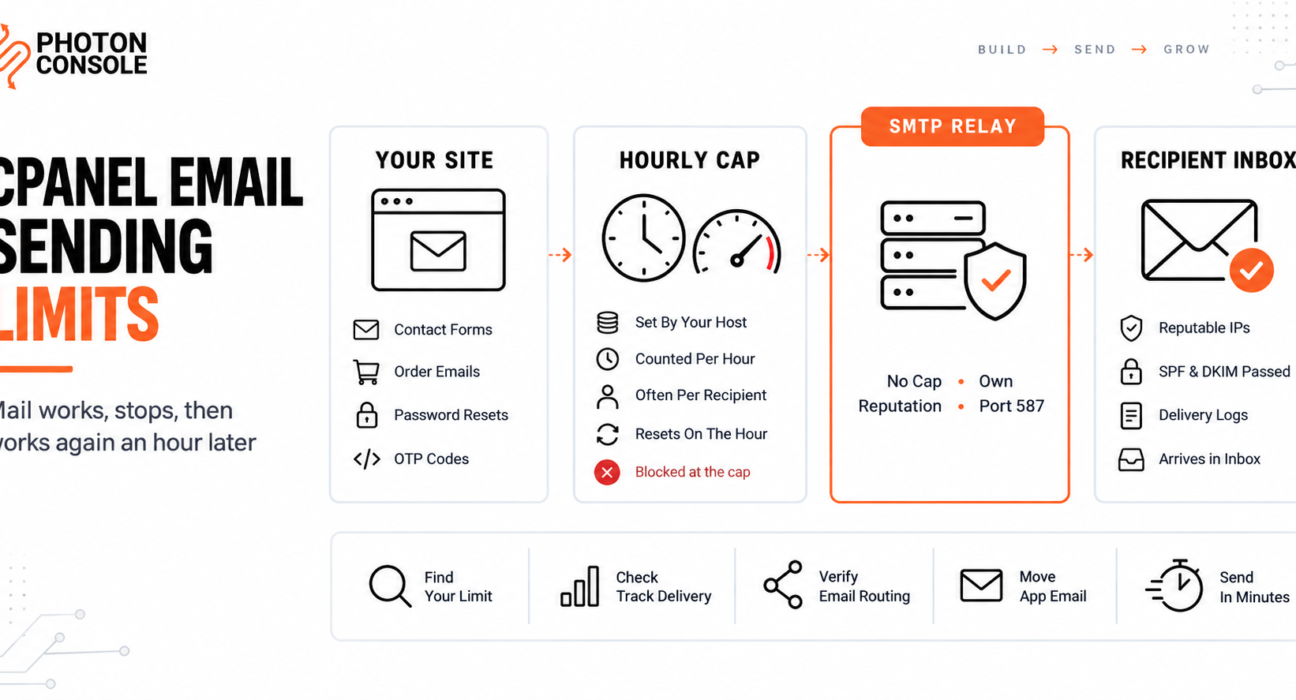
Shared hosts cap how many messages each domain may send per hour. The number is set by your hosting provider, not by cPanel itself, so it varies from one host to another. When you exceed it, further messages are deferred, bounced or silently discarded until the hour rolls over.

Raising the cap is not the fix. Application mail should leave through an authenticated relay, which is not subject to the host’s counter and not sharing an IP address with every other site on the server:
Host:  smtp.photonrelay.com
Port:  587
User:  your_project_api_user
Pass:  your_secret_api_key
Your mailboxes can stay exactly where they are. Only the mail your application generates needs to move, and a relay such as PhotonConsole handles that path without touching your inbox hosting.
Why Shared Hosts Cap Outbound Mail
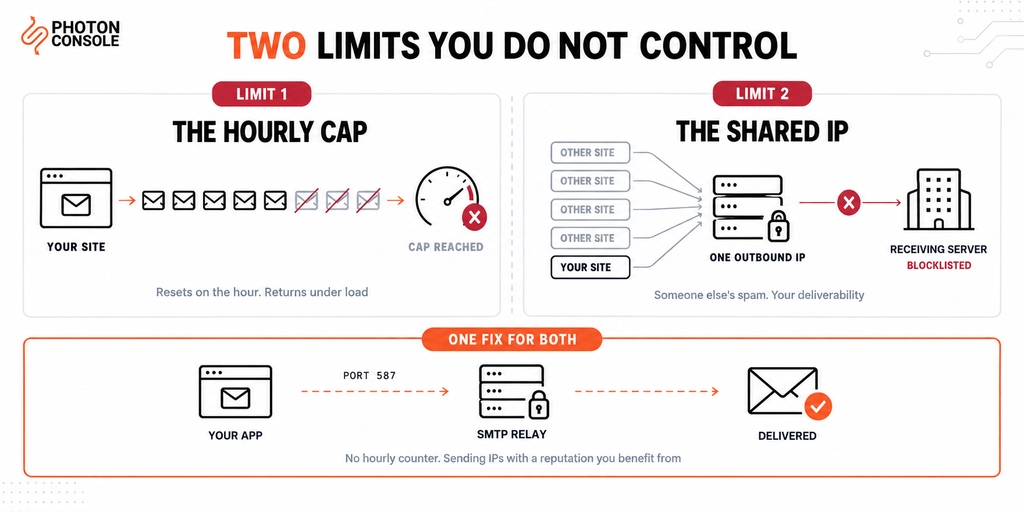
A shared server hosts hundreds of accounts behind one outbound IP address. A single compromised site can send tens of thousands of spam messages in an hour, and the blocklist entry that follows applies to the IP — which means every other tenant on that server suddenly cannot deliver mail either.
The hourly cap is the host’s defence against that. It limits the damage one account can do before someone notices.
Understood that way, the cap is not an obstacle to argue with. It is a deliberate ceiling on a resource you share, and the reason it exists is the same reason the shared IP is a problem for you.
Step 1: Find Your Actual Limit
Do not guess this number, and do not trust a figure from an article — including this one. Limits differ by host and often by plan.
- Check your host’s documentation or knowledge base for “email sending limit” or “hourly email limit”
- Look in cPanel under Email for any per-domain limit your host exposes
- If neither is visible, open a support ticket and ask for the per-domain hourly figure on your plan
- Ask one further question while you are there: whether the counter counts messages or recipients
Note
That last question matters more than the headline number. On many configurations the counter counts recipients rather than messages, so one message addressed to fifty people can consume fifty units of your allowance. A newsletter plugin or a bulk notification run will then hit the ceiling far earlier than the stated limit suggests. Confirm which applies on your server before you plan around the number.
How the Limit Is Enforced
Three different behaviours get described as “hitting the limit”, and they need different responses.
| Behaviour | What you see | Is the mail recoverable? |
|---|---|---|
| Deferred | Nothing immediately; delivery is delayed | Yes — it is queued and retried |
| Bounced | A rejection naming the limit | No, but you are told it failed |
| Discarded | Nothing at all | No, and nothing records the loss |
The third case is the dangerous one. Your application calls the mail function, the function reports success, and the message is dropped above it. Nothing in your own logs will ever show a problem.
Quick Fix
Emails Stop Partway Through a Batch
- Note the exact time the sends stopped — a clean cut on the hour points to a cap
- Wait for the next hour and retry a single message; success confirms the diagnosis
- Open Track Delivery in cPanel and look for deferred or failed events
- Count how many messages left before it stopped and compare with your stated limit
- Check whether your allowance is counted per recipient, which halves or worse your real headroom
Step 2: Confirm It in Track Delivery
You almost certainly have no shell access on shared hosting, so the mail log is out of reach. cPanel’s Track Delivery interface is the accessible equivalent.
It reports message deliveries from your account with an event status for each one — delivered, deferred or failed — and a result column describing the outcome. That result text is what tells you whether a limit was involved.
Two caveats worth knowing before you rely on it. It only shows messages the server’s statistics database retained, and how long that data is kept is set by your hosting provider. A failure from last week may simply no longer be there.
What to look for in the Result column:

  "exceeded"  or  "limit"      -> you hit the hourly cap
  "deferred"  with a retry     -> queued, will try again
  "rejected"  naming a list    -> IP reputation, not the cap
  no entry at all              -> the message never reached Exim
That last line is the important one. If your application believes it sent a message and Track Delivery has no record of it, the failure happened inside your application or PHP, not at the mail server. Our guides to PHP mail() failures and WordPress not sending email cover that case.
The Second Problem: You Do Not Own the IP
Raising the cap, if your host allows it, solves exactly one of your two problems.
Mail from a shared server leaves from an address shared with every other account on it. You have no visibility into what those accounts send and no control over the consequences. Your authentication can be perfect and your content impeccable, and a neighbour’s compromised installation can still put the IP on a blocklist.
You can check what the current state looks like — MXToolbox will show blocklist status for an IP, and Spamhaus maintains the lists most receivers consult — but checking is all you can do. The listing is not yours to appeal.
| Action | Fixes the hourly cap | Fixes the shared IP |
|---|---|---|
| Ask the host to raise the limit | Sometimes, to a point | No |
| Upgrade to a larger shared plan | Usually, temporarily | No — still shared |
| Publish SPF and DKIM correctly | No | Partially — proves authorisation, not trust |
| Space sends out across the hour | Works around it | No |
| Send application mail via a relay | Yes | Yes |
Common Mistake
Treating the cap as the whole problem and buying a bigger plan to raise it. The number moves, the mail flows again, and nothing about the shared IP has changed — so the deliverability problems continue while the sending problem appears solved. Worse, the new ceiling arrives at the next growth step, and you pay again for the same temporary fix. The cap and the IP are two independent problems, and only moving the mail path addresses both.
The Routing Trap Nobody Warns You About
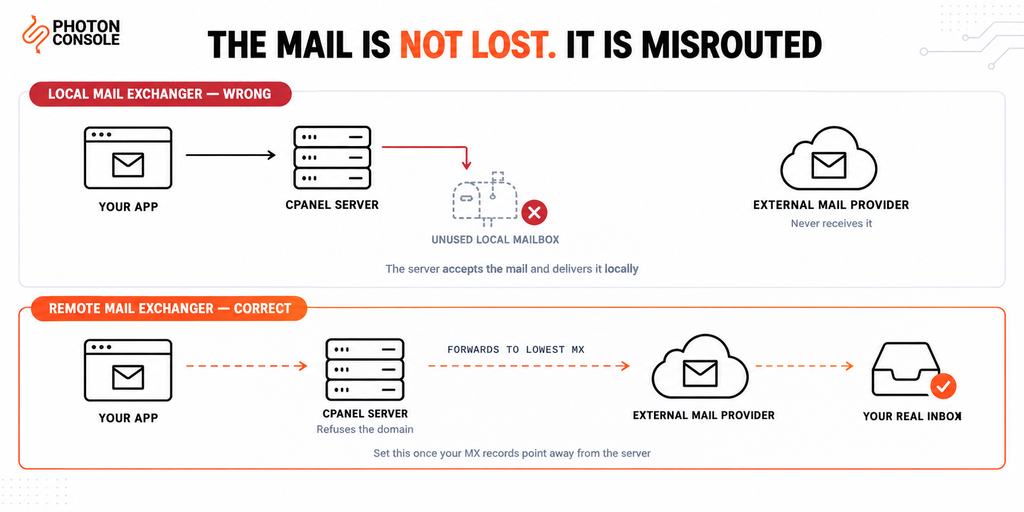
This one is specific to cPanel and it catches people who have done everything else correctly.
Suppose you move your mailboxes to Google Workspace or Microsoft 365 and update your MX records. External mail now flows correctly. But mail your own application sends to an address on your own domain never arrives.
The cause is cPanel’s Email Routing setting. With Local Mail Exchanger selected, the server always accepts mail for the domain and delivers it to a local mailbox — one that is now empty and unmonitored, because your real inbox is elsewhere. The message is not lost or bounced. It is delivered, to the wrong place.
Remote Mail Exchanger is the correct setting once your MX records point away from the server. With it selected, the server refuses to accept mail for the domain and forwards it to the lowest-numbered exchanger instead — your actual mail provider.
Quick Fix
Mail to Your Own Domain Never Arrives
- Open cPanel, go to Email Routing and select your domain
- If your MX records point to an external provider, set Remote Mail Exchanger
- Leave it on Local Mail Exchanger only if cPanel still hosts your mailboxes
- Send a test message from your application to an address on your own domain
- Check the external provider’s inbox, not cPanel’s webmail
The automatic setting reads the local zone file rather than performing a live DNS lookup, so a DNS change made elsewhere will not necessarily update it. If you moved your MX records at your registrar, check this setting by hand.
Step 3: Move Application Mail to a Relay
The distinction that makes this easy: your mailboxes and your application mail do not have to live in the same place.
Leave your inboxes on cPanel or wherever they are. Point only the mail your site generates — order confirmations, password resets, form notifications, OTP codes — at an authenticated relay. The host’s hourly counter does not apply to it, because it never touches the host’s mail server.
# WordPress — in an SMTP plugin's settings
Host:        smtp.photonrelay.com
Port:        587
Encryption:  TLS (STARTTLS)
Username:    your_project_api_user
Password:    your_secret_api_key
From:        noreply@yourdomain.com
// PHP with PHPMailer — replace mail() entirely
$mail->isSMTP();
$mail->Host = 'smtp.photonrelay.com';
$mail->Port = 587;
$mail->SMTPAuth = true;
$mail->SMTPSecure = PHPMailer::ENCRYPTION_STARTTLS;
$mail->Username = getenv('SMTP_USER');
$mail->Password = getenv('SMTP_PASS');Two practical notes for shared hosting. Keep the credentials out of files inside the web root where possible, and confirm your host does not block outbound 587 — a few do, in which case port 2525 is the fallback. PhotonConsole accepts both, so a restrictive host does not require a different provider.
TXT    @                    v=spf1 include:relay.photonconsole.com ~all
CNAME  photon._domainkey    dkim.photonconsole.com
If an SPF record already exists authorising your host’s mail server, add the relay to the same record rather than publishing a second one. Two separate TXT records beginning v=spf1 break authentication entirely.
Authentication failures are one of the most common causes of email delivery problems, and receivers including Gmail expect aligned SPF and DKIM. Our guide to SPF, DKIM and DMARC explains the records, and the free email deliverability checker shows what your domain publishes right now.
Port Reference on Shared Hosting
| Port | Purpose | On typical shared hosting |
|---|---|---|
| 25 | Server-to-server relay | Usually blocked outbound |
| 587 | Authenticated submission | Normally available |
| 465 | Submission over implicit SSL | Normally available |
| 2525 | Unofficial fallback | Useful when 587 is restricted |
Port 587 is the submission port defined in RFC 6409 for authenticated clients. Because every connection requires credentials, hosts have no reason to restrict it the way they restrict port 25. PhotonConsole accepts submission on 587, 465 and 2525.
Pro Tips
- Separate transactional from bulk. A newsletter and a password reset should never share a sending path, because one filling the queue delays the other.
- Never send a campaign through cPanel mail. It is the fastest way to put the server’s shared IP on a blocklist and inconvenience several hundred strangers.
- Log every send attempt in your application. On shared hosting you cannot read the mail log, so your own log is the only record you control.
- Check the routing setting after any MX change. It does not follow DNS automatically, and the failure it causes looks nothing like a routing problem.
- Watch for a clean cut on the hour. Sends that stop at a round time and resume later are a cap, not a bug.
- Score a real send before launch. Mail Tester flags authentication problems before your customers find them.
Related Issues You May Hit Next
- WordPress not sending email when the failure is in
wp_mail()rather than the cap - WooCommerce order emails not sending where lost mail costs sales directly
- PHP mail() not working when nothing reaches the mail server at all
- Emails arriving late which is what deferral looks like from outside
- Emails landing in Gmail spam the usual consequence of a shared IP
- Emails sent but not delivered when your code reports success
Frequently Asked Questions
What is the cPanel hourly email limit?
A per-domain cap on outbound messages per hour, set by your hosting provider rather than by cPanel. There is no universal figure — ask your host for the number on your plan.
Why do my emails work again after an hour?
The counter resets as the hour rolls over. Intermittent failures that clear on their own and return under load are the signature of a sending cap.
Can I increase the limit?
Sometimes, by asking your host or moving to a larger plan. It raises the ceiling without changing the shared IP, so delivery problems usually persist.
Does one email to fifty people count as one or fifty?
It depends on the configuration, and on many servers it counts per recipient. Ask your host, because the answer changes your real headroom dramatically.
Why does mail to my own domain disappear after moving to Google Workspace?
cPanel’s Email Routing is still set to Local Mail Exchanger, so the server accepts the message and delivers it to an unused local mailbox. Change it to Remote Mail Exchanger.
Do I have to move my mailboxes to use a relay?
No. Leave your inboxes where they are and route only application-generated mail through the relay. The two are independent.
How do I see why a message failed on shared hosting?
Use Track Delivery in cPanel. It shows delivered, deferred and failed events with a result description, though only for the period your host retains that data.
Conclusion
Shared hosting email failures are rarely failures of your code. An hourly cap you did not know existed stops sends partway through, and a shared IP address you do not control decides what happens to the messages that do get out.
Both are consequences of sharing a server, and neither is a configuration error you can fix on your side. Raising the cap moves one number. It leaves the other problem exactly where it was.
The durable arrangement separates the two jobs: let your host serve your website and your mailboxes, and let a reliable SMTP provider carry the mail your application generates. There is no hourly counter on that path, the sending IPs have a reputation you benefit from rather than inherit, and the configuration travels with you if you change hosts later. Pricing starts with 5,000 free emails per month, which is enough to prove the path before you spend anything.