Tag: email deliverability

  • Why Email Infrastructure Fails (And What Most Teams Get Wrong)

    Why Email Infrastructure Fails (And What Most Teams Get Wrong)

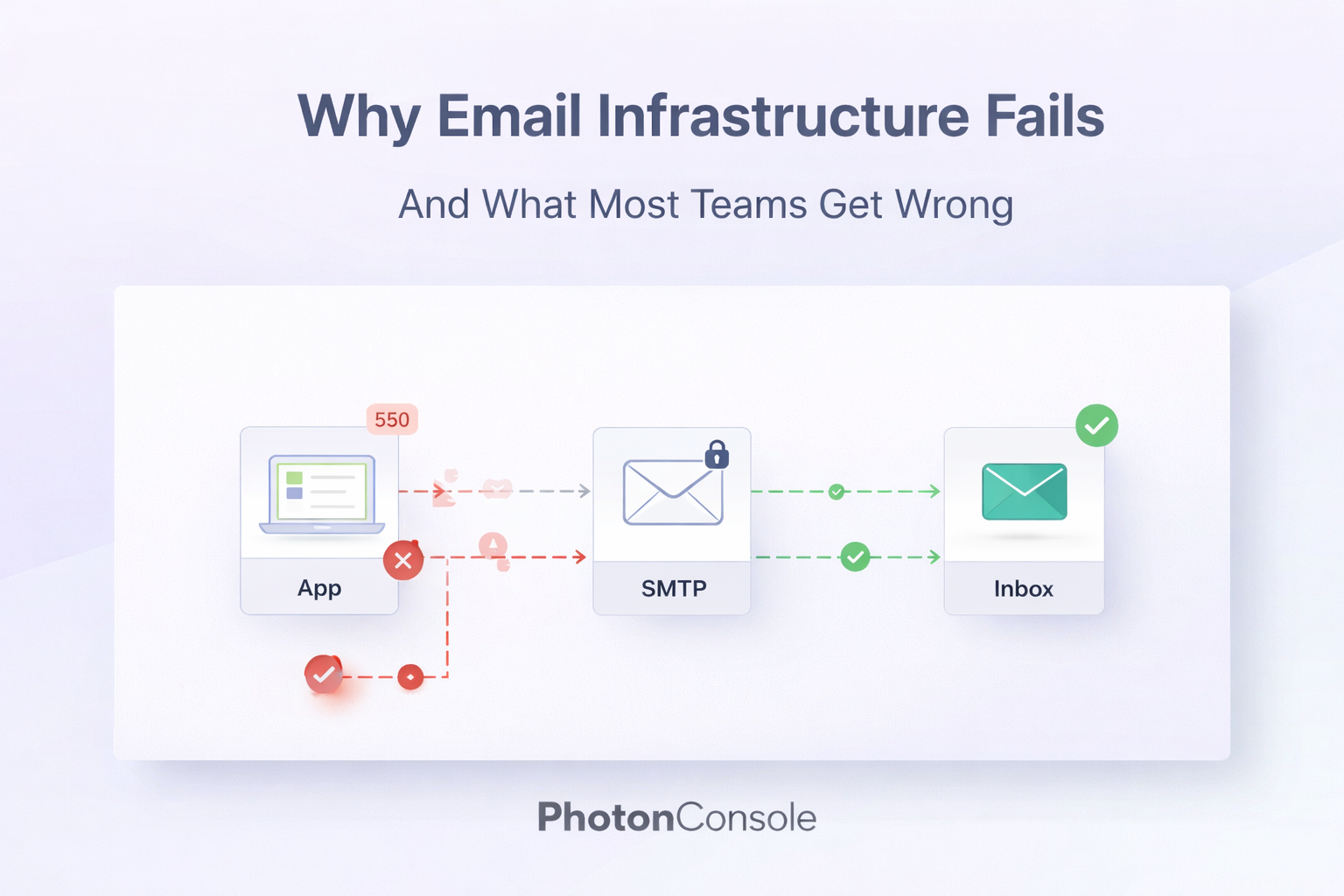
    Most email failures do not crash your system. There is no error page. No alert. No notification. Your application keeps running, your users keep trying to log in, and somewhere between your server and their inbox, the OTP silently disappears.

    This is what makes broken email infrastructure so dangerous. It does not fail loudly. It fails quietly, and users simply leave.

    If you have ever received a support ticket that says “I never got the verification email” or “my password reset link never arrived,” you have already experienced the consequence of poor email infrastructure. The code worked. The delivery did not.

    This post breaks down why email infrastructure fails, what most engineering and product teams consistently get wrong, and how to build a setup that actually works at scale.


    Quick Answer: Why Do Emails Fail to Deliver?

    Email delivery fails for several interconnected reasons. The most common causes are:

    • Misconfigured SMTP settings or missing authentication records
    • Sending from shared or blacklisted IP addresses
    • Lack of SPF, DKIM, and DMARC records on the sending domain
    • No monitoring or logging to detect failures early
    • Using a development SMTP setup in a production environment

    Most SMTP errors occur due to misconfiguration or authentication issues, not bugs in application code. The fix is almost always infrastructure-level, not application-level.


    Why Email Infrastructure Fails

    Email delivery looks simple from the outside. You call a function, pass an address, and the email goes out. Under the hood, however, email relies on a chain of protocols, DNS records, IP reputation systems, and third-party filtering engines. Any weak link in that chain causes failure.

    1. Bad SMTP Configuration

    Many teams configure SMTP once and never revisit it. A port mismatch, an expired credential, a wrong hostname, or a firewall rule that blocks outgoing connections on port 465 or 587 can silently drop every outgoing email without a clear error surfacing to the application layer.

    Here is where most people mess up: they test email in development, it works, and they assume production will behave the same way. It often does not. Hosting providers, cloud platforms, and corporate networks handle outbound SMTP differently.

    2. Missing Email Authentication

    Authentication failures are one of the most common causes of email delivery issues. If your domain does not have SPF, DKIM, and DMARC records properly configured, receiving mail servers treat your messages with suspicion.

    • SPF tells receiving servers which IPs are allowed to send email on behalf of your domain
    • DKIM adds a cryptographic signature that proves the email was not tampered with in transit
    • DMARC defines what happens when SPF or DKIM checks fail

    Without these records, your emails may reach the inbox today and land in spam tomorrow, depending entirely on the receiving server’s current filtering policies. You can verify your domain’s authentication setup using tools like MXToolbox Email Health.

    3. Shared IP Reputation Problems

    When you send email through a basic hosting provider or a shared SMTP service, your messages go out from an IP address shared with hundreds or thousands of other senders. If any one of those senders behaves badly, their spam complaints affect your deliverability too.

    This silently breaks your setup. You did nothing wrong, but your emails start landing in spam because someone else on the same IP was flagged.

    4. No Understanding of Deliverability as a System

    Deliverability is not a single setting you toggle. It is the cumulative result of domain reputation, IP reputation, content quality, sending volume consistency, and recipient engagement. Teams that treat it as a checkbox item almost always encounter problems when they start scaling.


    Common Real-World Problems Teams Face

    SMTP 535 Authentication Errors

    A 535 error means the SMTP server rejected the login credentials. This happens when passwords change, when two-factor authentication is enforced on the sending account, or when app-specific passwords expire. These errors often appear suddenly after months of stable sending and take time to diagnose without proper logging.

    Emails Going to Spam

    This is the most reported and least understood email problem. Emails going to spam can be caused by any combination of poor sender reputation, missing authentication, low engagement rates, spammy content patterns, or being on a shared IP with a bad history. There is rarely a single cause, which makes diagnosis difficult without the right tools.

    Google’s Gmail bulk sender guidelines provide a clear picture of what Gmail expects from senders, and Microsoft publishes similar guidance through their Microsoft 365 anti-spam documentation. Most teams have never read either.

    Delayed Transactional Emails

    OTP emails, password resets, and account verification messages have a short window to be useful. A 30-second delay in an OTP delivery is frustrating. A 5-minute delay causes users to abandon the flow entirely. Delays are typically caused by message queuing issues, rate limiting on the sending server, or throttling by the receiving domain.


    What Most Teams Get Wrong

    Treating Email as a Feature, Not Infrastructure

    The most common mistake is categorizing email the same way you categorize a UI component or an API endpoint. A button can be broken and patched in the next deploy. Email infrastructure that fails can damage domain reputation in ways that take weeks or months to recover from.

    Email is infrastructure. It needs to be planned, monitored, and maintained with the same seriousness as your database or your CDN.

    Not Monitoring Delivery at All

    Most teams have zero visibility into what happens after an email is sent. They know the function was called. They do not know if the message was delivered, bounced, deferred, or filtered as spam. Without delivery logs and bounce tracking, there is no way to detect a failure until a user reports it.

    Ignoring the Infrastructure Layer Entirely

    It is tempting to plug in a quick SMTP library and move on. But the infrastructure layer, meaning the IP reputation, the authentication setup, the sending domain configuration, and the relay architecture, is what determines whether your emails actually arrive. Skipping this work creates compounding problems as your sending volume grows.


    Real Example: What One Team Experienced

    Understanding these failures in theory is one thing. Seeing them play out in a real system is another.

    Midgrow, a digital solutions company managing production systems for multiple clients, ran into exactly these issues. Their transactional email setup worked fine at low volumes. As usage scaled, OTP delays started appearing. Verification emails were landing in spam folders. SMTP errors began surfacing in logs with no clear pattern.

    The root cause was not their application code. It was the infrastructure underneath it. They were sending through a basic SMTP setup with no dedicated relay, incomplete authentication records, and no real visibility into what was happening after emails were dispatched.

    The way they diagnosed it, addressed it step by step, and rebuilt their email delivery layer is documented in detail in this real-world case study on fixing email infrastructure. It is worth reading if you are managing transactional email for any production system, because the problems they faced are not unique to them.


    How to Fix Email Infrastructure the Right Way

    Step 1: Use a Dedicated SMTP Relay

    Stop sending email directly from your application server or through a shared hosting SMTP. A dedicated SMTP relay service gives you a dedicated sending infrastructure with managed IP reputation, proper authentication support, and delivery optimization built in.

    Step 2: Set Up SPF, DKIM, and DMARC

    These are not optional. Add an SPF record to your DNS that authorizes your sending service. Enable DKIM signing so that emails carry a verifiable signature. Set a DMARC policy so that receiving servers know how to handle failures. You can test your configuration at mail-tester.com before going live.

    Step 3: Monitor Delivery Logs Actively

    Every email you send should generate a log entry. You need to track at minimum: delivery status, bounce events, soft bounce reasons, and spam complaint rates. Without this data, you are flying blind.

    Step 4: Scale Gradually and Warm Up New IPs

    If you are moving to a new sending domain or IP, warm it up gradually. Start with a small volume, build a positive sending history, and increase volume over two to four weeks. Jumping straight to high-volume sending on a new IP is one of the fastest ways to get flagged by spam filters.

    Step 5: Separate Transactional and Marketing Email Streams

    Transactional emails (OTPs, alerts, confirmations) and marketing emails (newsletters, promotions) should go through separate sending streams. A high unsubscribe rate on a marketing campaign should never affect the deliverability of your OTP emails.


    Quick Fix: Checklist for Email Infrastructure

    • SPF record added to DNS and includes your relay provider
    • DKIM signing enabled and verified
    • DMARC policy set to at minimum p=none with a reporting address
    • Sending through a dedicated relay, not a shared SMTP server
    • Bounce tracking and delivery logs active
    • Transactional and marketing streams separated
    • IP warm-up plan in place for new sending infrastructure

    Where PhotonConsole Fits Into This

    Building reliable email infrastructure from scratch is complex. Most teams do not have the time or resources to manage IP reputation, configure dedicated sending infrastructure, and maintain delivery monitoring alongside everything else they are building.

    PhotonConsole is built specifically to handle the infrastructure layer. It provides a dedicated SMTP relay with high deliverability infrastructure, full authentication support, delivery logging, and a pay-as-you-use pricing model that works for startups and growing teams without locking you into enterprise contracts.

    It integrates with Node.js, PHP, WordPress, and any platform that supports standard SMTP, which means your application code does not change. The infrastructure underneath it becomes significantly more reliable. If you want to evaluate it for your use case, the pricing page breaks down the cost structure clearly.

    The goal is not to add complexity. It is to remove the part of the system that was silently failing.


    Pro Tips for Keeping Email Infrastructure Healthy

    • Set up delivery alerts: If your send volume drops suddenly, something is wrong. Alert on it like you would alert on a service going down.
    • Review bounce logs weekly: Hard bounces to invalid addresses hurt your sender score. Clean your lists regularly.
    • Never use a free Gmail or personal email as a from address for transactional email: This breaks DKIM alignment and causes spam filtering issues.
    • Test before you launch: Every new email flow should be tested end-to-end in a staging environment that mirrors your production DNS and authentication setup.
    • Document your SMTP configuration: When the person who set it up leaves the team, undocumented SMTP credentials and settings become a serious operational risk.

    Related Issues to Be Aware Of

    • SMTP 550 errors (recipient address rejected)
    • SMTP 421 errors (service temporarily unavailable, often rate limiting)
    • Reverse DNS misconfiguration causing delivery failures
    • SSL/TLS handshake failures on port 465 vs 587
    • Email header spoofing flags triggering spam filters

    Frequently Asked Questions

    Why are my transactional emails going to spam?

    The most common reasons are missing or misconfigured SPF, DKIM, or DMARC records, sending from a shared or blacklisted IP, or using a domain with no established sending reputation. Authentication setup should be the first thing you check.

    What is SMTP 535 error?

    SMTP error 535 means authentication failed. The sending server rejected the username or password used to connect. This usually happens when credentials expire, change, or when the account requires app-specific passwords.

    How do I improve email deliverability?

    Start with proper SPF, DKIM, and DMARC configuration. Then move to a dedicated SMTP relay with managed IP reputation. Monitor bounce and complaint rates consistently and keep your email lists clean.

    Should transactional and marketing emails use the same sending domain?

    No. Use a subdomain or a separate domain for marketing email. This protects your primary transactional sending domain from reputation damage caused by marketing campaign metrics.

    How long does it take to recover from a bad sender reputation?

    It depends on severity, but typically two to six weeks of clean sending behavior is needed before spam filters start treating your domain favorably again. Prevention is significantly easier than recovery.


    Conclusion

    Reliable email delivery is not optional. It is foundational.

    Every OTP that never arrives is a user who cannot log in. Every verification email that lands in spam is a registration that never completes. Every delayed transactional message is a moment of friction that erodes trust in your product.

    The teams that avoid these problems are not the ones with the best application code. They are the ones who understood early that email is infrastructure, built it accordingly, and monitored it continuously.

    The fixes are not difficult. They require the right setup, the right tooling, and consistent attention. Start with authentication, move to a dedicated relay, and add monitoring. That sequence alone resolves the majority of email delivery failures.

    Read More

  • SMTP Authentication Error: Causes & Solutions (Fix SMTP Error 535 Step-by-Step)

    SMTP Authentication Error: Causes & Solutions (Fix SMTP Error 535 Step-by-Step)

    Your transactional emails have stopped sending. OTP codes are not reaching users. Password reset emails are failing silently. Your application looks broken to every new visitor trying to sign up. And somewhere in your error logs, there is a line that reads: 535 Authentication Failed or Username and Password not accepted.

    SMTP authentication errors are one of the most disruptive email failures a developer or website owner can face. They block critical communication, damage user trust, and are often caused by something as simple as a missing app password or a disabled SMTP setting. This guide explains exactly why SMTP authentication errors happen and how to fix them permanently, step by step.


    Why SMTP Authentication Error Happens (Quick Answer)

    An SMTP authentication error occurs when the mail server rejects the login credentials provided during the email sending process. The most common causes are wrong username or password, using an account password instead of an app-specific password, two-factor authentication blocking the login, SMTP access being disabled on the email account, or incorrect SMTP host and port settings in the application configuration.


    What Is SMTP Authentication?

    SMTP authentication (often called SMTP AUTH) is the process by which an email client or application proves its identity to a mail server before being permitted to send emails. When your application calls an SMTP server, the server asks for a username and password. If those credentials are verified, the server allows the email to be sent. If authentication fails, the server returns an error code and the email is not delivered. Most SMTP authentication errors occur due to incorrect credentials or missing app password configuration.


    Common SMTP Authentication Error Messages

    Recognizing the exact error message helps narrow down the cause quickly. The most frequent SMTP authentication error messages include:

    • 535 Authentication Failed – The server rejected the login attempt entirely.
    • 535 5.7.8 Username and Password not accepted – Common with Gmail; usually means an app password is needed.
    • SMTP Login Failed – Generic error from many mail clients and plugins.
    • Authentication Unsuccessful – Common in Microsoft and Office 365 environments.
    • 534-5.7.9 Please log in with your web browser and then try again – Google flagging a suspicious or blocked login attempt.
    • 530 5.7.0 Must issue a STARTTLS command first – Encryption mismatch between client and server.

    Main Causes of SMTP Authentication Error

    1. Wrong Username or Password

    The most straightforward cause is entering the wrong email address or password in the SMTP configuration. This happens during initial setup, after a password change, or when migrating servers. Even a single misplaced character in the password field will cause a 535 error.

    Example: You recently changed your Gmail password but forgot to update the password in your WordPress SMTP plugin. Every email attempt now fails with a login error.

    2. Using Account Password Instead of App Password

    Google, Microsoft, and other providers no longer allow applications to use your main account password for SMTP access. You must generate a dedicated app password from your account security settings and use that in your application instead.

    Example: A developer configures Nodemailer with their Gmail address and regular password. Gmail blocks the login because it requires an app-specific password for third-party SMTP access.

    3. Two-Factor Authentication Issues

    When two-factor authentication (2FA) is enabled on your email account, logging in via SMTP using your regular password is blocked by design. The provider expects you to use an app password that bypasses the 2FA prompt for machine-to-machine connections.

    Example: An Office 365 account has MFA enforced by the administrator. A PHP application trying to send emails via that account’s SMTP credentials keeps receiving an authentication failure until an app password or OAuth token is configured.

    4. SMTP Access Disabled

    Many email providers disable SMTP access by default or after detecting suspicious activity. If SMTP sending has not been explicitly enabled in your email account settings, all authentication attempts will fail regardless of whether the credentials are correct.

    Example: A newly created Gmail account has IMAP enabled but SMTP relay not configured. The application cannot send emails until SMTP access is turned on from the Google Admin Console or account settings.

    5. Incorrect SMTP Settings

    Using the wrong SMTP host, port, or encryption protocol causes the connection to reach the wrong endpoint, leading to authentication failures. Mixing up port 465 (SSL) with port 587 (TLS) is a common configuration mistake.

    Example: A WordPress site is configured with smtp.gmail.com on port 25 with no encryption. Gmail does not accept unauthenticated SMTP on port 25, so every email fails.

    6. Hosting Restrictions

    Shared hosting providers frequently block outgoing connections on SMTP ports (25, 465, 587) to prevent spam abuse. Your application may have perfect credentials, but the firewall on the server-side will silently drop the connection before authentication can even occur.

    Example: A Laravel application on a shared cPanel host cannot connect to an external SMTP server because the host blocks outbound port 587. The error appears as a connection timeout or authentication failure depending on how the client handles it.


    How to Fix SMTP Authentication Error (Step-by-Step)

    Quick Fix – Most Common Solution:

    • Enable 2-Step Verification on your Google or Microsoft account
    • Generate a dedicated app password from your account security settings
    • Replace your regular account password with the app password in your SMTP config
    • Verify SMTP host, port, and encryption match your provider’s requirements

    Step 1: Verify Credentials

    Start with the basics. Open your SMTP configuration file, plugin settings, or environment variables and confirm that:

    • The username is the full email address, not just the username part (e.g., you@yourdomain.com, not you)
    • The password is current and has not been changed recently
    • There are no extra spaces, hidden characters, or encoding issues in the password field

    Try logging into the email account manually through a browser to confirm the credentials work at the account level before debugging the application layer.

    Step 2: Use an App Password

    If your email provider supports or requires app passwords, generate one and use it in place of your main account password. This is mandatory for Gmail when 2-Step Verification is enabled, and strongly recommended for Microsoft 365 accounts with MFA.

    For Gmail: Go to your Google Account > Security > 2-Step Verification > App passwords. Select “Mail” and your device, then copy the generated 16-character password. Use this in your SMTP configuration. Refer to Google’s official app password guide for the most current steps.

    For Microsoft 365: Navigate to your Microsoft account > Security > Advanced security options > App passwords. Microsoft’s official app password documentation walks through the full process.

    Step 3: Enable SMTP Access on Your Email Account

    Verify that SMTP sending is enabled on your email account, not just IMAP or POP access.

    • Gmail: Go to Settings > See all settings > Forwarding and POP/IMAP. Enable IMAP (which also unlocks SMTP sending).
    • Google Workspace: In Google Admin Console, go to Apps > Google Workspace > Gmail > End User Access and enable SMTP relay.
    • Microsoft 365: Go to Microsoft 365 Admin Center > Active users > Select user > Mail > Manage email apps. Enable Authenticated SMTP.

    Step 4: Check SMTP Configuration

    Cross-reference your application’s SMTP settings against your provider’s official documentation. Misconfiguration is one of the leading causes of authentication failures. Here is a reference for the most common providers:

    ProviderSMTP HostPort (TLS)Port (SSL)
    Gmailsmtp.gmail.com587465
    Outlook / Hotmailsmtp-mail.outlook.com587N/A
    Microsoft 365smtp.office365.com587N/A
    Yahoo Mailsmtp.mail.yahoo.com587465
    PhotonConsolesmtp.photonconsole.com587465

    Step 5: Fix Port and Encryption Settings

    Using the wrong port or encryption method is a silent configuration error. The mail server will either refuse the connection or fail authentication because the handshake does not match expectations.

    • Port 587 + STARTTLS (TLS) – The recommended modern configuration for most providers.
    • Port 465 + SSL/TLS – Used by providers that require implicit SSL from the start of the connection.
    • Port 25 – Reserved for server-to-server communication. Do not use for authenticated client SMTP sending.

    Always match the encryption setting in your application (TLS vs SSL) to the port number. Mismatching these two values is a very common cause of authentication failures that appear identical to credential errors in the logs.

    Step 6: Use a Reliable SMTP Service

    Here is where most people reach a breaking point: personal and business email accounts like Gmail and Outlook were not designed for high-volume application email sending. They have sending limits, rate restrictions, security blocks, and deliver poor results for transactional email at scale.

    Switching to a dedicated SMTP relay service like PhotonConsole eliminates most authentication errors permanently because:

    • Credentials are stable and specifically designed for application use
    • No 2FA complications or app password requirements
    • SMTP access is always enabled and monitored
    • Infrastructure is purpose-built for transactional and bulk email delivery
    • SPF, DKIM, and DMARC are pre-configured for high deliverability

    SMTP Authentication Error in Different Platforms

    Gmail

    Gmail is the most common source of SMTP authentication errors for developers. The 535 5.7.8 error almost always means you are using your regular account password instead of a generated app password. Google requires app passwords for all third-party SMTP clients when 2-Step Verification is active. Additionally, Google may temporarily block access if it detects a login from an unrecognized application or location, showing the “Please log in with your web browser” error.

    Fix: Enable 2-Step Verification, generate an app password, and use that 16-character password in your SMTP settings.

    WordPress

    WordPress sends emails through PHP’s built-in mail() function by default, which bypasses SMTP authentication entirely and relies on the server’s sendmail binary. This setup has poor deliverability and frequently fails on managed hosting. The fix is to use an SMTP plugin (WP Mail SMTP, FluentSMTP, or Post SMTP) and configure it with proper credentials.

    Quick Fix for WordPress SMTP Authentication Error:

    • Install WP Mail SMTP or Post SMTP plugin
    • Enter your SMTP host, port, username, and app password
    • Set encryption to TLS and port to 587
    • Send a test email from the plugin dashboard
    • Check plugin logs if the test fails for the exact error code

    If your hosting provider blocks outgoing SMTP ports, switching to a dedicated SMTP relay service is the most reliable solution, as it typically operates over alternative ports or HTTPS-based APIs that bypass hosting restrictions.

    PHPMailer

    PHPMailer is one of the most widely used PHP libraries for sending email. Authentication errors in PHPMailer are usually caused by incorrect credentials, missing SMTPAuth flag, or wrong encryption settings.

    A correct PHPMailer configuration for Gmail looks like this:

    
    $mail = new PHPMailer(true);
    $mail->isSMTP();
    $mail->Host       = 'smtp.gmail.com';
    $mail->SMTPAuth   = true;
    $mail->Username   = 'you@gmail.com';
    $mail->Password   = 'your-app-password';
    $mail->SMTPSecure = PHPMailer::ENCRYPTION_STARTTLS;
    $mail->Port       = 587;
    

    Set SMTPAuth to true and always use an app password, not your regular Gmail password. Enable SMTP debugging with $mail->SMTPDebug = 2; to see the full server response during troubleshooting.

    Nodemailer

    For Node.js applications using Nodemailer, SMTP authentication errors typically surface as Invalid login or 535 Authentication credentials invalid. The most common fix is identical to PHPMailer: use an app password and verify the service and port.

    
    const transporter = nodemailer.createTransport({
      host: 'smtp.gmail.com',
      port: 587,
      secure: false,
      auth: {
        user: 'you@gmail.com',
        pass: 'your-app-password'
      }
    });
    

    Set secure: false when using port 587 with STARTTLS. Set secure: true when using port 465 with SSL. Mixing these values will cause a TLS handshake failure that looks like an authentication error.


    When to Use a Dedicated SMTP Service

    If you are repeatedly dealing with SMTP authentication errors, hitting Gmail sending limits, or watching emails land in spam, these are infrastructure problems — not configuration problems. No amount of credential tweaking will fix a Gmail account that was never designed to send thousands of transactional emails per day.

    A dedicated email delivery service like PhotonConsole is built specifically for this use case. It provides stable SMTP credentials that never expire, a high-deliverability relay infrastructure with pre-configured SPF and DKIM, email logs and delivery tracking, and a pay-as-you-use pricing model that scales with your business. You can review available plans on the PhotonConsole pricing page.

    Unlike Gmail or Outlook, a purpose-built SMTP relay does not have the security restrictions, 2FA complications, or account-level sending limits that cause most authentication errors in the first place.


    SMTP Authentication Error – Quick Fix Summary Table

    Error MessageMost Likely CauseFix
    535 Authentication FailedWrong username or passwordVerify credentials, use app password
    535 5.7.8 Username and Password not acceptedRegular password used instead of app passwordGenerate and use a Google app password
    SMTP Login FailedWrong credentials or SMTP disabledEnable SMTP access, verify login
    Authentication UnsuccessfulMFA blocking access (Microsoft 365)Create an app password or use OAuth
    534 Please log in via your browserGoogle security blockUse app password, review security alerts
    530 Must issue STARTTLS firstEncryption mismatchSet encryption to TLS, port to 587
    Connection TimeoutHosting blocking outbound SMTP portsUse a dedicated SMTP relay service

    Pro Tips to Avoid SMTP Authentication Errors

    • Never use your main account password for SMTP. Always generate an app password or use API-based authentication when available.
    • Store credentials in environment variables. Hardcoding SMTP passwords in source code leads to accidental exposure and makes credential rotation painful.
    • Test your email configuration before deploying. Use tools like Mail Tester or MXToolbox Email Health to verify SMTP connectivity and authentication before going live.
    • Set up SPF, DKIM, and DMARC records. Authentication failures sometimes happen at the DNS level, not just the SMTP credential level. Missing or misconfigured email authentication records can cause delivery failures that look like SMTP errors.
    • Monitor SMTP logs regularly. Most frameworks and SMTP plugins provide logs. Checking them proactively catches credential expiration or rate-limit issues before they become outages.
    • Rotate app passwords periodically. If you suspect a credential has been exposed or if you receive unexpected authentication failures, regenerate the app password immediately and update all dependent applications.
    • Use a dedicated sending domain. Sending transactional email from your primary domain’s Gmail account puts your entire email reputation at risk. A dedicated subdomain (e.g., mail.yourdomain.com) with a reliable SMTP relay keeps business and application email separate.

    Related SMTP Issues You Might Face

    SMTP authentication errors are often part of a broader set of email delivery problems. Once authentication is resolved, you may still encounter the following:

    • SMTP Not Working: The connection never establishes. Usually a firewall, wrong host, or blocked port issue rather than a credentials problem.
    • SMTP Connection Error: The client times out before authentication can begin. Often caused by hosting providers blocking outbound SMTP ports.
    • SMTP Server Not Sending Emails: Authentication succeeds but emails do not arrive. The cause is usually deliverability issues, a full queue, or DNS misconfiguration.
    • Emails Going to Spam: A deliverability issue caused by missing SPF/DKIM records, sending from a low-reputation IP, or email content triggering spam filters.
    • SMTP Rate Limiting: The server accepts authentication but throttles or rejects messages after a daily quota is reached. Common when using Gmail for application sending.

    Quick Fix – If Authentication Passes But Emails Still Fail:

    • Check SPF and DKIM DNS records using MXToolbox
    • Verify the sender address matches the authenticated account
    • Review SMTP server logs for bounce or rejection messages
    • Test deliverability with mail-tester.com before sending in volume

    Frequently Asked Questions

    What does SMTP error 535 mean?

    SMTP error 535 means the mail server rejected the authentication attempt. The server received the username and password but could not verify them. This usually means the credentials are wrong, an app password is required, or SMTP access is disabled on the account.

    How do I fix “Username and Password not accepted” in Gmail?

    Enable 2-Step Verification on your Google account, then go to Security > App passwords and generate a new app password for mail. Use that 16-character password in your SMTP configuration instead of your regular Gmail password.

    Why does my SMTP authentication keep failing even with the correct password?

    If credentials are correct but authentication still fails, the most likely cause is that your email provider requires an app password (not your account password) for SMTP access, or that SMTP access has not been enabled on the account. Two-factor authentication and hosting-level firewall blocks are also common culprits.

    Is port 465 or 587 better for SMTP?

    Port 587 with STARTTLS is the recommended modern standard for client SMTP submission. Port 465 with implicit SSL is also widely supported and acceptable. Avoid port 25 for application-level sending, as it is reserved for server-to-server mail transfer and is frequently blocked by hosting providers.

    Can I use Gmail SMTP for sending application emails?

    Gmail SMTP can be used for low-volume application email sending, but it has a 500-emails-per-day limit for regular accounts and 2,000 for Workspace accounts. It also requires app passwords, has security restrictions, and is not designed for reliable transactional email delivery at scale. A dedicated SMTP relay service is a better long-term choice for production applications.

    What is the difference between SMTP authentication and email authentication?

    SMTP authentication refers to the login process when your application connects to the SMTP server (username and password). Email authentication refers to DNS-level protocols (SPF, DKIM, DMARC) that prove the email was sent from an authorized server. Both are necessary for reliable email delivery.

    How do I test if my SMTP settings are correct?

    Use a tool like MXToolbox SMTP diagnostics or send a test email through your application with SMTP debug logging enabled. PHPMailer supports SMTPDebug = 2 and Nodemailer supports a debug: true option that prints the full server conversation to the console.


    Conclusion

    SMTP authentication errors are not random. They are almost always caused by a specific, fixable configuration issue: wrong credentials, a missing app password, a disabled SMTP setting, or a port mismatch. Authentication failures are one of the most common causes of email delivery issues in web applications, and they can be resolved systematically by following the steps in this guide.

    For developers and businesses sending critical transactional email, the real long-term solution is to stop relying on consumer email accounts as your SMTP backend. Gmail and Outlook impose daily sending limits, require complex security workarounds, and are not designed for production application email. Every hour of downtime caused by an SMTP authentication failure is a user who did not receive their OTP, a customer who never got their order confirmation, and revenue that was silently lost.

    A purpose-built email delivery service like PhotonConsole solves this at the infrastructure level. Stable SMTP credentials, pre-configured SPF and DKIM, a high-deliverability relay network, and email tracking logs that make debugging fast and simple. If you are ready to stop chasing authentication errors and start sending reliably, explore the PhotonConsole SMTP relay and review the pricing options that scale with your sending volume.


    Read More