When emails stop working, most teams have no idea where to begin. The inbox shows nothing. The logs are vague. And the support queue is filling up. Testing your SMTP server is the first step — and if you skip it, you are just guessing.
Whether you are dealing with a 535 authentication error, a connection timeout, or emails silently vanishing into spam folders, this guide walks you through exactly how to test an SMTP server the right way — from credential verification to delivery log analysis.
Quick Answer: How to Test an SMTP Server Fast
To test an SMTP server quickly, verify your SMTP credentials (host, port, username, password), use Telnet or an online SMTP testing tool to check the connection, send a test email, and review the delivery logs for errors. If authentication fails or emails are not delivered, check your SPF and DKIM DNS records and confirm no firewall is blocking your SMTP port.
What Does It Mean to Test an SMTP Server?
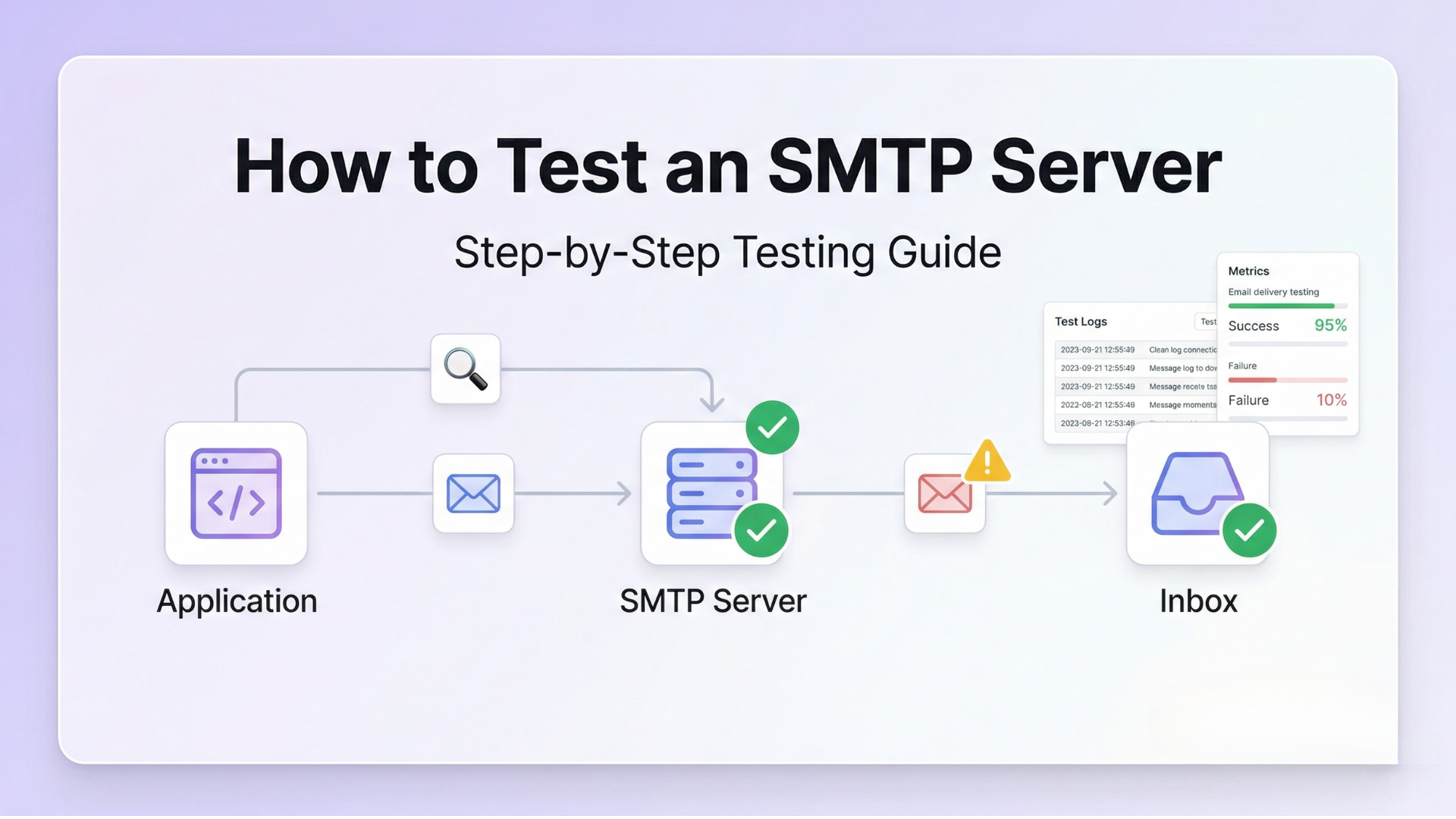
Testing an SMTP server means checking three things: whether a connection can be established, whether authentication succeeds, and whether a message actually gets delivered to the recipient. It is not just about pinging a server. You are validating the full sending pipeline — from your application to the recipient’s inbox.
A passing SMTP test confirms your setup is technically correct. A failing test tells you exactly where the breakdown is happening — which is valuable information you cannot get from vague bounce messages.
Common SMTP Issues You Might Be Facing
Before diving into the testing process, it helps to understand what you are likely dealing with. Most SMTP errors fall into one of these categories:
- Authentication failures (Error 535): Wrong username, password, or authentication method. This is the most common issue developers encounter. See the full breakdown in the SMTP 535 error guide.
- Connection timeouts: The client tries to connect but the server never responds. Often caused by a blocked port or firewall rule.
- Emails going to spam: The connection succeeds, the message is sent, but it lands in the junk folder. This points to a DNS or reputation issue. Read more about why emails go to spam in Gmail.
- Incorrect SMTP configuration: Wrong port, wrong host, or TLS/SSL mismatch. These cause silent failures that are hard to trace without proper testing.
If any of these sound familiar, the step-by-step process below will help you isolate the root cause. For a broader look at SMTP failures, the SMTP not working guide covers 10 of the most common errors in detail.
Step-by-Step: How to Test an SMTP Server
Step 1: Verify Your SMTP Credentials
This is where most people mess up. Before running any test, confirm you have the correct values for every field:
- SMTP Host: e.g., smtp.photonconsole.com or smtp.gmail.com
- Port: 587 (TLS/STARTTLS), 465 (SSL), or 25 (unencrypted, often blocked)
- Username: Usually your full email address or API key
- Password: Account password or app-specific password
- Encryption: TLS, SSL, or none — must match what the server expects
A single typo in the hostname or a copy-paste error in the password causes the entire pipeline to fail. Double-check these before anything else.
Step 2: Test the SMTP Connection Using Telnet
Telnet lets you manually open a raw TCP connection to your SMTP server and see exactly how it responds. This confirms whether the server is reachable and the port is open.
Run this command from your terminal or command prompt:
telnet smtp.yourdomain.com 587If the connection succeeds, you will see a response starting with 220, which means the server is ready. If the connection hangs or refuses, you have a firewall or port-blocking issue — not a credentials problem.
On Windows, Telnet may need to be enabled first via Control Panel > Programs > Turn Windows features on or off. On Linux and macOS, it is typically available by default or can be installed via the package manager.
Once connected, you can manually run SMTP commands (EHLO, AUTH LOGIN, MAIL FROM, RCPT TO, DATA, QUIT) to walk through the full handshake and identify where it breaks.
Quick Fix: Connection Refused or Timeout
- Try port 465 or 25 if 587 is blocked
- Check if your hosting provider or ISP blocks outbound SMTP ports
- Confirm the SMTP host resolves correctly using
nslookup smtp.yourdomain.com
Step 3: Send a Test Email and Verify Delivery
Once the connection test passes, send an actual test email using your application or an SMTP client. Use a real recipient address you have access to — ideally a Gmail or Outlook address — so you can verify end-to-end delivery.
Check for:
- Email arriving in inbox (not spam)
- Correct sender name and address in the From field
- Accurate subject line and body content
- No encoding or formatting issues
If the email arrives in spam, that is a deliverability problem — not an SMTP connectivity issue. Tools like Mail-Tester can score your email and show you exactly what triggered spam filters.
Step 4: Verify SPF and DKIM Authentication
Authentication failures are one of the most common causes of email delivery issues. Even if your SMTP connection works perfectly, emails can be rejected or marked as spam if your DNS records are missing or misconfigured.
Check the following DNS records for your sending domain:
- SPF (Sender Policy Framework): A TXT record that lists the servers authorized to send email from your domain. Example:
v=spf1 include:photonconsole.com ~all - DKIM (DomainKeys Identified Mail): A cryptographic signature added to outgoing emails. Requires a public key published as a DNS TXT record.
- DMARC: A policy record that tells receiving servers what to do when SPF and DKIM checks fail.
Use MXToolbox to check all three records for free. If any are missing, you need to add them in your DNS settings before testing further.
Step 5: Analyze Your SMTP Delivery Logs
Logs tell you what actually happened after the connection was made. Look for:
- 250 OK — Message accepted for delivery
- 550 / 554 — Message rejected by recipient server (often a spam or policy block)
- 421 — Service temporarily unavailable (server overloaded or rate-limited)
- 535 — Authentication failed
If you are using a self-hosted mail server, logs are usually found at /var/log/mail.log or /var/log/maillog. If you are using a third-party SMTP provider, check the dashboard’s sending log or event history.
Quick Fix: Email Delivered but Not Showing in Inbox
- Check the spam or junk folder first
- Use Mail-Tester or Google Postmaster Tools to check sender reputation
- Confirm your DKIM signature is valid using MXToolbox
- Avoid spam-trigger words in the subject line
Tools You Can Use to Test SMTP
| Tool | Use Case | Type |
|---|---|---|
| Telnet / OpenSSL | Raw SMTP connection test | Command line |
| Mail-Tester.com | Spam score and authentication check | Online tool |
| MXToolbox | SPF, DKIM, DMARC, and blacklist lookup | Online tool |
| swaks (Swiss Army Knife for SMTP) | Automated SMTP testing via command line | Command line |
| Google Postmaster Tools | Gmail delivery reputation monitoring | Dashboard |
| SMTP provider dashboard logs | Real-time delivery event tracking | Built-in |
Real Problems We See Again and Again
After debugging hundreds of SMTP setups, the same issues come up repeatedly. Here is what actually breaks things in practice:
- Wrong port with wrong encryption: Using port 465 with STARTTLS instead of SSL — or 587 without enabling TLS. The handshake fails and the error message is misleading.
- ISP or hosting port blocks: Many shared hosting providers and residential ISPs block port 25 entirely. Switching to port 587 or using a dedicated SMTP relay resolves this immediately.
- Shared IP reputation damage: If you are on a shared SMTP server with a poor sending reputation, your emails get flagged even when your own configuration is perfect. This silently breaks your setup without any error in the logs.
- Outdated credentials cached in the application: Your code still uses an old password or API key from a previous configuration. The connection is attempted with invalid credentials on every send.
- Missing or misaligned DMARC policy: SPF and DKIM pass individually but DMARC alignment fails because the From domain does not match the signing domain.
When Testing Alone Is Not Enough
Testing confirms your current setup is working — but it does not protect you from future failures. If you are seeing recurring SMTP issues, inconsistent delivery rates, or scaling problems as your email volume grows, testing is only diagnosing symptoms.
Common signs that testing alone will not solve your problem:
- Emails pass testing but still land in spam at high volume
- Your server’s IP gets blacklisted periodically
- Delivery rates drop after sending bulk campaigns
- No centralized logging to trace individual message failures
These are infrastructure problems — and they require an infrastructure solution, not just better testing.
Where PhotonConsole Removes This Complexity
Setting up and maintaining a reliable SMTP infrastructure is genuinely difficult, especially at scale. Handling IP reputation, SPF/DKIM alignment, bounce processing, and delivery monitoring on your own takes significant time and expertise.
PhotonConsole’s SMTP relay service is built to handle that infrastructure for you. Instead of managing a self-hosted mail server or dealing with ISP port restrictions, you connect your application to PhotonConsole’s relay and get:
- Pre-configured SPF, DKIM, and DMARC support
- Real-time delivery logs and event tracking
- High-reputation sending IPs maintained at the infrastructure level
- Compatibility with Node.js, PHP, WordPress, and any app that supports SMTP
For teams that have already spent hours debugging SMTP issues, it removes the recurring burden entirely. Check the pricing page — it runs on pay-as-you-use model, so there is no upfront commitment.
Pro Tips for SMTP Testing
- Always test from the same server or environment that will send in production — not your local machine. Firewall rules and IP-based restrictions behave differently.
- Use
swaksfor scripted, repeatable SMTP tests. It supports authentication, TLS, custom headers, and verbose output — far more powerful than Telnet for ongoing testing. - Check Google’s email sender guidelines if you are sending to Gmail addresses — especially for bulk sending. Non-compliance leads to delivery failures regardless of your SMTP setup.
- Rotate test recipients. Sending to the same address repeatedly can trigger spam filters even during testing.
- Document every configuration change you make. When SMTP breaks, knowing what changed last is often the fastest path to the fix.
Related Issues You May Also Encounter
If SMTP testing reveals deeper problems, these resources cover the most common follow-up issues:
- SMTP 535 Authentication Error: Causes and Fixes — covers every reason authentication fails and how to resolve each one
- SMTP Not Working: 10 Common Errors and How to Fix Them — a comprehensive reference for the most frequent SMTP failures
- Why Emails Go to Spam in Gmail: 7 Real Reasons and Fixes — for when your SMTP works but delivery is still failing
Frequently Asked Questions
How do I know if my SMTP server is working?
Use Telnet to open a connection to your SMTP host on port 587. If you receive a 220 response, the server is reachable. Then send a test email and verify it arrives in the recipient’s inbox without spam filtering.
What port should I use for SMTP testing?
Port 587 with STARTTLS is the recommended standard for most SMTP setups. Use port 465 if your provider requires SSL. Avoid port 25 — it is blocked by most ISPs and hosting providers.
Why does my SMTP test pass but emails still go to spam?
A passing connection test only confirms the server is reachable and authentication works. Spam placement is determined by DNS authentication (SPF, DKIM, DMARC), sender reputation, and email content — none of which are tested by a basic connection test.
What is the difference between SMTP testing and email deliverability testing?
SMTP testing validates the technical connection: host, port, authentication, and relay. Email deliverability testing checks whether messages actually reach the inbox — including spam scoring, blacklist status, and DNS authentication.
Can I test SMTP without Telnet?
Yes. Online tools like Mail-Tester, MXToolbox, and the swaks command-line utility are all effective alternatives. Many SMTP providers also include built-in test send features in their dashboard.
Conclusion
Testing your SMTP server tells you where the problem is. Fixing your email infrastructure ensures the problem does not come back.
Work through the five steps in this guide — verify credentials, test the connection, send a test message, check your authentication records, and analyze the delivery logs. Most SMTP issues become obvious once you have a structured process to follow.
If your testing keeps revealing the same failures, or if you are spending more time maintaining your email setup than building your product, it may be time to move to a purpose-built email delivery service designed to handle this layer for you.
Leave a Reply